
AZ-104 · Question #145
SIMULATION Overview The following section of the exam is a lab. In this section, you will perform a set of tasks in a live environment. While most functionality will be available to you as it would…
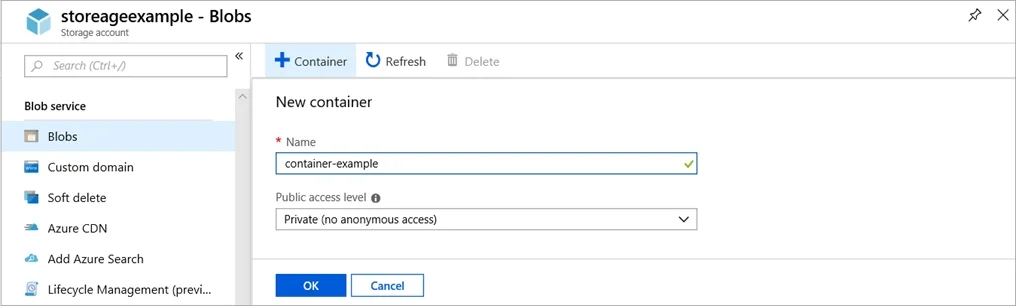
The correct answer is A. See below explanation. Azure portal create public container To create a container in the Azure portal, follow these steps: Step 1. Navigate to your new storage account in the Azure portal. Step 2. In the left menu for the storage account, scroll to the lob service section, then select Select the +…
Question
Exhibit
Options
- ASee below explanation
How the community answered
(22 responses)- A100% (22)
Explanation
Azure portal create public container To create a container in the Azure portal, follow these steps: Step 1. Navigate to your new storage account in the Azure portal. Step 2. In the left menu for the storage account, scroll to the lob service section, then select Select the + Container button. Type a name for your new container: bios Set the level of public access to the container: Select anonymous access. Step 3. Select OK to create the container. https://docs.microsoft.com/en-us/azure/storage/blobs/storage-quickstart-blobs-portal
Community Discussion
No community discussion yet for this question.