
700-281 · Question #56
Drag and Drop Question Match the interface with the use on the WSA. Answer:
The correct answer is Policy Trouble shooting; Start Test Button; File size limit; Password. WSA Interface Matching - Explanation This question is about the Cisco Web Security Appliance (WSA) and mapping interface elements to their functional roles. The correct arrangement reflects how these features logically relate to the WSA's Policy Trace / Troubleshooting workflow…
Question
Drag and Drop Question Match the interface with the use on the WSA. Answer:
Exhibit
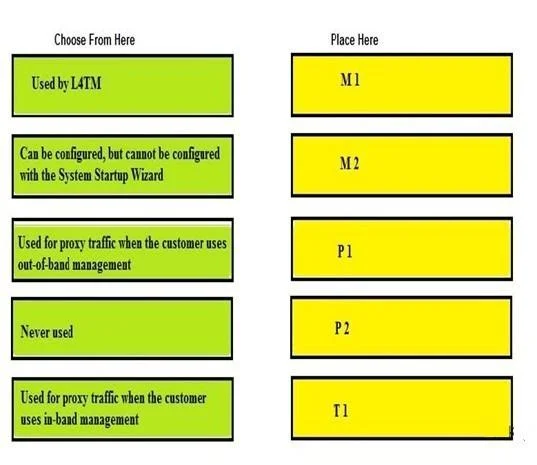
Answer Area
Drag items
Correct arrangement
- Policy Trouble shooting
- Start Test Button
- File size limit
- Password
Explanation
WSA Interface Matching - Explanation
This question is about the Cisco Web Security Appliance (WSA) and mapping interface elements to their functional roles. The correct arrangement reflects how these features logically relate to the WSA's Policy Trace / Troubleshooting workflow and configuration areas.
Why This Arrangement
The ordering maps from broadest/highest-level to most specific/granular within the WSA interface:
Position 1: Policy Troubleshooting
This is the overarching feature/section container.
- The WSA includes a Policy Trace tool (found under Web Security Manager) used to simulate a web request and trace which policies apply to it.
- This is the entry point - you navigate here first before doing anything else.
- Common mistake: Confusing "Policy Troubleshooting" with general system diagnostics. It specifically tests web access policy decisions, not hardware/network issues.
Position 2: Start Test Button
This is the action trigger within the Policy Trace tool.
- After configuring your test parameters inside the troubleshohooting interface, you click Start Test to execute the policy simulation.
- It belongs after selecting the tool (position 1) because you must be inside that interface before this button is relevant.
- Common mistake: Assuming this is a general "run diagnostics" button. It only runs the policy trace simulation.
Position 3: File Size Limit
This is a configurable scanning parameter.
- The WSA allows administrators to set file size limits for content scanning (anti-malware, AVC). Files above the threshold may be passed without scanning or blocked outright.
- In the troubleshooting/policy context, file size is a testable parameter that affects which policy branch applies.
- Common mistake: Thinking file size limits are only in anti-malware settings. They also factor into access policies and HTTPS inspection decisions.
Position 4: Password
This is the most granular/specific credential input.
- On the WSA, password fields appear in contexts like:
- Simulating an authenticated user request in the Policy Trace tool
- Configuring scanning behavior for password-protected archives
- It sits last because it's the most specific optional parameter - you only need it when testing authenticated transactions or archive-related policy behavior.
- Common mistake: Assuming "password" refers to admin login credentials. In this interface context, it refers to user authentication being tested as part of a simulated web request.
Key Takeaway
The arrangement flows: Tool → Action → Parameter → Credential - from navigation to execution to configuration detail. If you see these four items, anchor on "Policy Troubleshooting" as the container and "Start Test" as the trigger; the other two are inputs fed into that test.
Topics
Community Discussion
No community discussion yet for this question.