
Microsoft
70-669 · Question #104
You manage a server that runs Windows Server 2008 R2 with the Remote Desktop Services (RDS) roles. Some applications are accessible through Remote Desktop Web Access (RD Web Access). You need to…
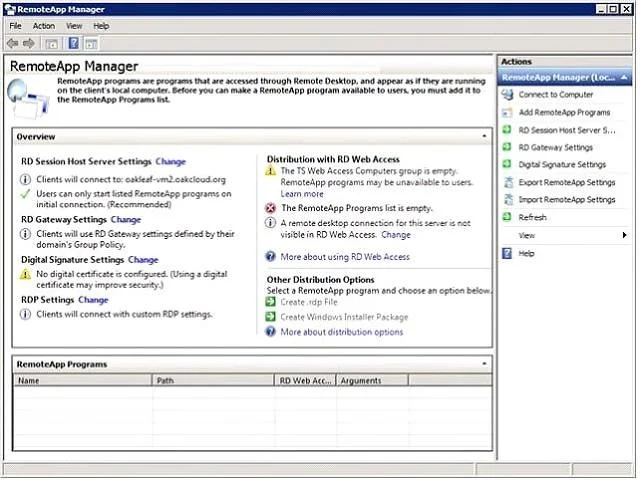
The correct answer is C. RemoteApp Manager. 1. Choose Start, Administrative Tools, Remote Desktop Services, RemoteApp Manager to open its MMC snap-in: Click the A Remote Desktop Connection for This Server Is Not Visible in RD Web Access Change link to open the RemoteApp Deployment Settings dialog with the RD Session Host…
Configuring Remote Desktop Web Access (RDWA) and Remote Desktop Gateway (RDG)
Question
You manage a server that runs Windows Server 2008 R2 with the Remote Desktop Services (RDS) roles. Some applications are accessible through Remote Desktop Web Access (RD Web Access). You need to ensure that a newly installed application is accessible through RD Web Access. Which tool should you use?
Exhibit
Options
- ARemote Desktops
- BRemote Desktop Session Host Configuration
- CRemoteApp Manager
- DRD Web Access Configuration
- ERemote Desktop Services Manager
How the community answered
(42 responses)- A2% (1)
- B12% (5)
- C74% (31)
- D7% (3)
- E5% (2)
Explanation
- Choose Start, Administrative Tools, Remote Desktop Services, RemoteApp Manager to open its MMC snap-in: Click the A Remote Desktop Connection for This Server Is Not Visible in RD Web Access Change link to open the RemoteApp Deployment Settings dialog with the RD Session Host Server tab active and mark the Show a Remote Desktop Connection ... check box: To enable users to have access to remote applications is needed to publish them in the RemoteApp Server, as the following procedure. The first step is to install all applications on RemoteApp that will be available on Server. Is interesting to check with the vendor if the application supports Windows Server 2008 for compatibility issues. After that, click Start> Administrative Tools> Remote Desktop Services and open the RemoteApp On the right side of the screen click Add RemoteApp Programs, as shown in Figure 1. Figure 1-Adding an application to the RemoteApp Server Soon will be displayed a to add the application. Click Next. On the next screen you can see a list of all applications available to add. Some of them are native to Windows and the rest are the ones that were installed on the server. Choose programs that will be added and click Next. In the example 2 were added to WordPad Figure 2-the RemoteApp Programs Available After this, click Next and Finish to confirm the addition. In RemoteApp Manager will be displayed a list of applications that have been added. By default all users that have access to RemoteApp Server can use them. If you need to restrict access to a user group, click the right application and then click Properties. Click the User Assignment tab and add the desired groups. After this procedure, only those groups and / or users of this list will have access to the software. Figure 3-Users with access to software Users can now access the programs through the RDP connection. For demonstration in Figure 4 and 5 was used the Remote Desktop Web portal access to applications. The user used is a member of the access group added in step one. Figure 4-Remote Desktop Web Portal Figure 5-Access Group RDS This is not the only way to use the applications. You can also create an MSI file to install an icon on the desktop and start menu containing the access settings or creating a connection to access remote-desktopservice.aspx
Topics
#RD Web Access#RemoteApp Manager#application publishing#RDS roles
Community Discussion
No community discussion yet for this question.