nerdexam
Microsoft

70-659 · Question #138

Your network includes a Windows Server 2008 R2 Hyper-V host with a Windows Server 2008 R2 virtual machine (VM). The VM is configured with a dynamically expanding VHD. The VMs system partition runs…

The correct answer is D. Using Hyper-V Manager, select the VM, run the Edit Virtual Hard Disk Wizard, and expand. Dynamically expanding. A dynamically expanding virtual hard disk is a disk in which the size of the .vhd file grows as data is written to the disk. This type provides the most efficient use of disk space. You will need to monitor the available disk space to avoid running out of…

Configuring Hyper-V

Question

Your network includes a Windows Server 2008 R2 Hyper-V host with a Windows Server 2008 R2 virtual machine (VM). The VM is configured with a dynamically expanding VHD. The VMs system partition runs out of space. You need to add more space to the VMs system partition. What should you do?

Exhibit
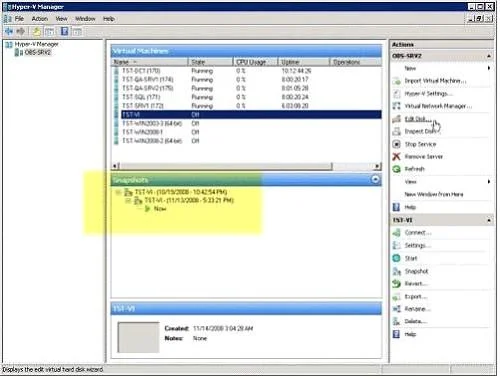
70-659 question #138 exhibit

Options

  • AUsing Hyper-V Manager, select the VM, run the Edit Virtual Hard Disk Wizard, and convert
  • BUsing Hyper-V Manager, select the VM, run the Edit Virtual Hard Disk Wizard, and expand
  • CUsing Hyper-V Manager, run the New Virtual Hard Disk Wizard, and create a blank VHD that
  • DUsing Hyper-V Manager, select the VM, run the Edit Virtual Hard Disk Wizard, and expand

How the community answered

(22 responses)
  • A
    14% (3)
  • B
    5% (1)
  • C
    5% (1)
  • D
    77% (17)

Explanation

Dynamically expanding. A dynamically expanding virtual hard disk is a disk in which the size of the .vhd file grows as data is written to the disk. This type provides the most efficient use of disk space. You will need to monitor the available disk space to avoid running out of disk space on the management operating system. Before using the ability to expand the VHD hard disk you must take the following issues into You must first completely shut down the virtual machine. You cannot expand a virtual hard disk that is associated with a running or saved stated virtual machine. If you expand a virtual hard disk that is associated with a virtual machine that has snapshots, these snapshots will be invalidated. If you need the snapshots, you'd better make sure you plan ahead of time, and/or create new snapshots after performing the expansion of the hard disk. Make sure no snapshots are associated with this VM. After expanding the virtual hard disk there will be an empty space at the end of the virtual hard disk, just like not using the entire disk when you've originally created partitions in it. You will either need to create a new partition to use the new space, or expand an existing partition into the new space. Note: Expanding or extending partitions on Windows Vista and Windows Server 2008 is easier than on Windows Server 2003 or Windows XP, and is performed by using either the Disk Management snap-in from the Computer Management tool, or by using the DISKPART command. Please read myHow to Extend a Disk Partition in Windows Vista and Server 2008article for more information. Follow these steps to expand VHD hard disks: Open the Hyper-V management tool from the Administrative Tools folder (or by typing virtmgmt.msc in the Run command). Start the Edit Virtual Hard Disk wizard by selecting Edit Disk... If the Before you begin window appears, click Next. Select the virtual hard disk you want to expand. Click Open and then Next. Select Expand on the Choose Action page and then press Next. Enter the new size of the virtual hard disk that you want and then press Next. In the final screen, press Finish. Wait till the operation finishes, which should be quite fast. Next, after booting the VM, use Disk Management snap-in from the Computer Management tool, or by using the DISKPART command to expand the partition within Windows. While possible in Windows Server 2008 and Windows Vista, unfortunately, in Windows 2000/XP/2003, you cannot use the built-in tools to expand the System Partition (the one the Windows operating system is installed on). For these versions you will need to use of these free partition utilities.

Topics

#VHD expansion#dynamic VHD#system partition#Edit Virtual Hard Disk Wizard

Community Discussion

No community discussion yet for this question.

Full 70-659 Practice