70-659 · Question #132
You have a Windows Server 2008 R2 Hyper-V server with two network adapters named Adapter1 and Adapter2. You need to configure the server to host virtual machines (VMs) on different networks. Which…
The correct answer is A. Set Adapter1 as a management interface. C. Set Adapter2 in Trunk mode, and configure VM VLAN tags. Configuring virtual local area networks (VLANs) All released versions of Hyper-V support virtual local area networks (VLANs). A VLAN configuration is software-based, which means that you can easily move a computer and still maintain their network configurations. For each…
Question
You have a Windows Server 2008 R2 Hyper-V server with two network adapters named Adapter1 and Adapter2. You need to configure the server to host virtual machines (VMs) on different networks. Which two actions should you perform on the host server? (Each correct answer presents part of the solution. Choose two.)
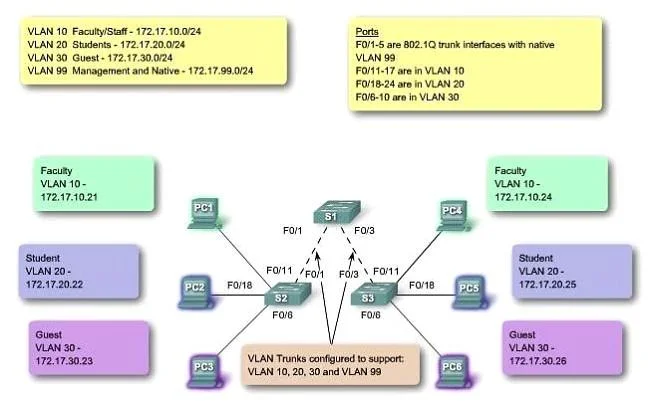
Exhibit
Options
- ASet Adapter1 as a management interface.
- BConfigure Adapter1 to support jumbo frames.
- CSet Adapter2 in Trunk mode, and configure VM VLAN tags.
- DDisable TCP Chimney support on Adapter2, and configure VM VLAN tags.
How the community answered
(32 responses)- A84% (27)
- B6% (2)
- D9% (3)
Explanation
Configuring virtual local area networks (VLANs) All released versions of Hyper-V support virtual local area networks (VLANs). A VLAN configuration is software-based, which means that you can easily move a computer and still maintain their network configurations. For each virtual network adapter you connect to a virtual machine, you can configure a VLAN ID for the virtual machine. You will need the following to configure VLANs: A physical network adapter that supports VLANs. A physical network adapter that supports network packets with VLAN IDs that are already On the management operating system, you will need to configure the virtual network to allow network traffic on the physical port. This is for the VLAN IDs that you want to use internally with virtual machines. Next, you configure the virtual machine to specify the virtual LAN that the virtual machine will use for all network communications. There are two modes in which you can configure a VLAN: access mode and trunk mode. In access mode, the external port of the virtual network is restricted to a single VLAN ID in the UI. You can have multiple VLANs using WMI. Use access mode when the physical network adapter is connected to a port on the physical network switch that also is in access mode. To give a virtual machine external access on the virtual network that is in access mode, you must configure the virtual machine to use the same VLAN ID that is configured in the access mode of the virtual Trunk mode allows multiple VLAN IDs to share the connection between the physical network adapter and the physical network. To give virtual machines external access on the virtual network in multiple VLANs, you need to configure the port on the physical network to be in trunk mode. You will also need to know the specific VLANs that are used and all of the VLAN IDs used by the virtual machines that the virtual network supports. Whether you choose "access" mode or "trunk" mode is determined by the port on the physical switch (for example your Cisco 6500 switch) that the physical NIC on the host is plugged into. If the port on the physical switch is configured to be in "trunk" mode, then your physical NIC supporting the virtual network should be as well. However, if the port on the switch is configured to be in "access" mode, then your physical NIC supporting the virtual network should be in Trunking allows multiple VLAN IDs to share the connection between the physical NIC and the physical switch. So if your virtual network needs to support external host access for VMs in a number of VLANs, you will need to push your network admin to configure the port on the physical switch to be in "trunk" mode and you need to tell him/her which VLANs he/she needs to configure on the trunk for all the VLAN IDs of the VMs that your virtual network supports. Hyper-V's UI always will do trunk mode if you specify a VLANID. Access mode is often the default on the physical swtich. In access mode the VLAN ID is stripped off the packets arriving at the physical switch, but they are still significant to the virtual network on Essentially the VLAN ID on the VMs and the virtual network need to match (for example: 22=22, none=none, 142=142) for the VMs to have external host access. Virtual networks in access mode can only use one VLAN ID. You cannot set up access mode in Hyper-V's UI. While Hyper-V allows you to configure this via WMI, if you want to do this through a UI you will have to use VMM SCVMM added the VLAN automatically to the VM Hosts VLAN Trunk , if you added the VLAN to a Virtual Machine. In Microsoft System Center Virtual Machine Manager 2008 R2 (SCVMM 2008 R2), this does not happen automatically. After or before you added the VLAN to the Virtual Machine you have to add the specific VLAN to the Host network adapter. In the properties of the Virtual Machine Host under networking you have to edit the VLN Trunk. Now you can add VLAN IDs to the VLAN Trunk:
Topics
Community Discussion
No community discussion yet for this question.
