70-659 · Question #116
Your Hyper-V servers run Windows Server 2008 R2 Standard. You manage the virtual environment by using Microsoft System Center Virtual Machine Manager (VMM) 2008R2. You need to ensure that you can…
The correct answer is B. SAN migration D. network migration. In VMM2008R2, virtual machines with SAN-attached pass-through disks can be migrated to a stand-alone host or stored in the library by using SAN migration if the SAN pass-through disk can be accessed by the destination host or library server. However, you must convert…
Question
Your Hyper-V servers run Windows Server 2008 R2 Standard. You manage the virtual environment by using Microsoft System Center Virtual Machine Manager (VMM) 2008R2. You need to ensure that you can migrate child partitions between host servers. What are two possible methods that will allow you to achieve this goal? (Each correct answer presents a complete solution. Choose two.)
Exhibit
Options
- Alive migration
- BSAN migration
- Cquick migration
- Dnetwork migration
How the community answered
(63 responses)- A8% (5)
- B70% (44)
- C22% (14)
Explanation
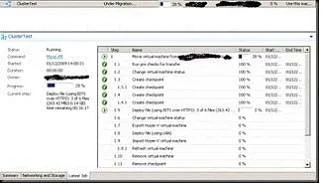
In VMM2008R2, virtual machines with SAN-attached pass-through disks can be migrated to a stand-alone host or stored in the library by using SAN migration if the SAN pass-through disk can be accessed by the destination host or library server. However, you must convert pass-through disks to virtual hard disks (.vhd files) if the pass-through disks are local or they cannot be accessed by the destination host or library server. In VMM2008, you must convert all pass- through disks before you move an HAVM to a library server or to a standalone host. To convert a pass-through disk to a virtual hard disk, update the disk configuration on theHardware Configurationtab of the virtual machine properties. In VMM2008R2, you can migrate or store a virtual machine that has pass-through disks by using SAN migration if the pass-through disks are SAN-attached and can be accessed by the destination host or library server. If the pass-through disks are local disks, or if SAN-attached disks cannot be accessed by the destination host or library server, the pass-through disks must be converted to virtual hard disks, and the files must be transferred over a LAN. In VMM2008, you must convert all pass-through disks before you move an HAVM to a library server or to a stand-alone host. SAN Migration in and out of clustered hosts--VMM2008R2 supports the use of SAN transfers to migrate virtual machines and highly available virtual machines between host clusters, to a host cluster from a non-clustered host, and from a host cluster to a non-clustered host. When you migrate a virtual machine into a cluster from a non-clustered host by using a SAN transfer, VMM checks all nodes in the cluster to ensure that each node can see the LUN and automatically creates a cluster disk resource for the LUN. Even though VMM automatically configures the cluster disk resource, it does not validate it. You must use the Validate a Configuration Wizard in Failover Cluster Management to validate the newly created cluster disk resource. To migrate a virtual machine from a host cluster to a non-clustered host by using a SAN transfer, the virtual machine must be on a dedicated LUN that is not using CSV. Without System Center Virtual Machine Manager 2008 R2 (and pre-Windows Server 2008 R2 Hyper-V) there is only one way to move a virtual machine between un-clustered hosts or between Hyper-V clusters. That is to perform what is referred to as a network migration. Think of this as an offline migration. The VM must be powered down, exported, the files moved, the VM imported again and powered up, maybe with the integration components being manually added. The whole process means a production VM can be offline for a significant amount of time. Moving a 100GB VHD takes time, even over 10GB-E. However, if you have Windows Server 2008 R2 (on both source and destination) and VMM 2008 R2 then you can avail of Quick Storage Migration: This is a clever process where a VM can remain up and running for the bulk of the file move. Microsoft claims that the VM only needs to be offline for maybe two minutes. That really does depend, as you'll see. We need to discuss something first. Hyper-V has lots of several different types of virtualised storage. One of them is a virtual hard disk (VHD) called a differencing disk. It is specially an AVHD (advanced virtual hard disk). It is used during a snapshot. That's a Hyper-V term. VMM refers to it as a checkpoint. The AVHD is created and the VM switches all write activity from it's normal VHD to the AVHD. All new data goes into the AVHD. All reads for old data come from the original VHD. That means the VHD is no longer locked, preventing copies. See where we're going here? Here we have two un-clustered host machines, 1 and 2. Host 1 is running a VM which has a single VHD for all of its storage. We want to move it from Host 1 to Host 2 with the minimum amount of downtime. We have W2008 R2 Hyper-V on both hosts and manage them with VMM We open up the VMM 2008 R2 console, right-click on the VM and select Migrate. In the wizard we select Host 2 as the destination and select the storage destination and the Virtual Network connection(s). Once we finish the wizard you'll see the original screenshot above. The VMM job creates a checkpoint (AKA snapshot) of the VM to be migrated. This means the VM will put all writes in the AVHD file. All reads of non-changed data will be from the VHD file. Now the VHD file is no-longer prevented from being copied. The VMM job uses BITS to copy the no-longer write locked VHD from Host 1 to the destination storage location on Host 2. During this time the VM is still running on Host 1. Here's where you have to watch out. That AVHD file will grow substantially if the VM is writing like crazy. Make sure you have sufficient disk space. Anyone still doing 1-VM-per-LUN cluster deployments will need to be really careful, maybe pick a specific storage location for snapshots that has space. Once the physical disk fills the VM will be paused by Hyper-V to save its continuity. If your VM is write-happy then pick a quiet time for this migration. Start your stop watch. Now the VM is put into a saved state (not paused) on Host 1. We have to move that AVHD which is otherwise write locked. If we don't move it then we lose all the written data since the job started. Again, BITS is used by VMM to move the file from Host 1 to Host 2. When the files are moved VMM will export the configuration of the VM from Host 1 and import it The checkpoint (AKA snapshot) is deleted. The VM needs to be offline here. Otherwise the AVHD would not be merged into the VHD. That would eventually kill the performance of the VM. But, the machine is offline and the AVHD can be merged into the VHD. All those writes are stored away Stop your stop watch. The virtual network connection(s) are restored and then the very last step is to change the virtual machine's running state, bringing it back to where it was before it went The entire process is automated from when you finish the wizard and up to when you check on the machine after the job has ended. It's storage is moved and the VM continues running on the Note that a VM with multiple VHD's will have multiple AVHD's; it's a 1-to-1 relationship. How long does this take? The offline time depends on how much data is written to the AVHD, ho fast your network can transmit that AVHD from Host 1 to Host 2 and how fast the disk is on Host 2 to merge the AVHD back into the VHD. The entire process takes as long as it takes to copy the VHD and then complete the AVHD process and do the tidy up work at the end of the job. In my tests with an idle VM, the offline time (not timed scientifically) felt to be under a minute. I moved a VM from a cluster to an un-clustered lab machine and back again. Both times, the highly available setting was appropriately changed. I was able to modify the virtual network connections appropriately in the migrate wizard.
Topics
Community Discussion
No community discussion yet for this question.
