
Microsoft
70-649 · Question #81
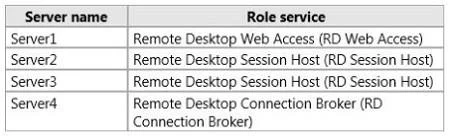
Your network contains four servers that run Windows Server 2008 R2. The servers are configured as shown in the following table. Server2 and Server3 are configured as RemoteApp sources on Server4…
Sign in or unlock 70-649 to reveal the answer and full explanation for question #81. The question stem and answer options stay visible for context.
Configuring Application Infrastructure
Question
Your network contains four servers that run Windows Server 2008 R2. The servers are configured as shown in the following table. Server2 and Server3 are configured as RemoteApp sources on Server4. You need to ensure that the RemoteApp programs are listed on the RD Web Access Web page on Server1. What should you do?
Exhibit
Options
- AOn Server4, add Server1 to the Session Broker Computers group.
- BOn Server4, add Server1 to the TS Web Access Computers group.
- COn Server1, add Server4 to the TS Web Access Administrators group.
- DOn Server1, add Server2 and Server3 to the TS Web Access Administrators group.
Unlock 70-649 to see the answer
You've previewed enough free 70-649 questions. Unlock 70-649 for full answers, explanations, the timed quiz mode, progress tracking, and the master PDF. Question stem and options stay visible so you can still see what's on the exam.
Topics
#RemoteApp#RD Web Access#TS Web Access Computers#Remote Desktop