nerdexam
Microsoft

70-649 · Question #92

Your network contains a server named Server1 that runs Windows Server 2008 R2. Server1 has the SMTP Server feature installed and has one SMTP Virtual Server named SMTP1. You need to configure Server1

The correct answer is D. Configure two remote domains to SMTP1.. Configuring SMTP Virtual Server Relay for Remote Domains You can configure an SMTP virtual server to relay incoming mail to your SMTP/POP3 server. The SMTP virtual server can also accept and relay mail to other domains within your organization. Specifying a relay server overrides

Configuring Application Infrastructure

Question

Your network contains a server named Server1 that runs Windows Server 2008 R2. Server1 has the SMTP Server feature installed and has one SMTP Virtual Server named SMTP1. You need to configure Server1 to meet the following requirements:

  • Relay e-mail messages for contoso.com.
  • Relay e-mail messages for nwtraders.com.
  • Prevent the relaying of e-mail messages to other domains.

What should you do?

Exhibit
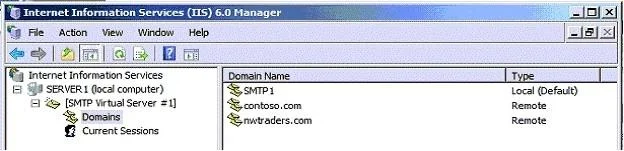
70-649 question #92 exhibit

Options

  • AModify the connection control settings of SMTP1.
  • BConfigure two alias domains to SMTP1.
  • CModify the relay restrictions list of SMTP1.
  • DConfigure two remote domains to SMTP1.

How the community answered

(38 responses)
  • A
    8% (3)
  • B
    3% (1)
  • C
    5% (2)
  • D
    84% (32)

Explanation

Configuring SMTP Virtual Server Relay for Remote Domains You can configure an SMTP virtual server to relay incoming mail to your SMTP/POP3 server. The SMTP virtual server can also accept and relay mail to other domains within your organization. Specifying a relay server overrides the smart host setting in the Advanced Delivery box of the SMTP virtual server. To configure an SMTP virtual server to relay mail to a remote domain 1. In IIS Manager, double-click the SMTP virtual server that you want to configure, right-click Domains, point toNew, and then click Domain. The New SMTP Domain Wizard starts. 2. Click Remote, and then click Next. 3. In the Name box, type a name for the remote domain, and then click Finish. 4. In IIS Manager, right-click the new remote domain, and then click Properties. 5. On the General tab, select the Allow incoming mail to be relayed to this domain check box to allow the SMTP server to act as a mail relay. 6. On the General tab under Route domain, click Forward all mail to smart host, and then type the fully qualified domain name or the IP address of the internal network corporate mail server through which you would like to route messages for this remote domain. 7. Click OK, and then stop and restart the SMTP virtual server. After you configure the remote domain, all mail that is addressed to the remote domain is relayed to the smart host that you configured. Mail that is not deliverable is stored in the Inetpub\Mailroot\Badmail folder.

Topics

#SMTP#email relay#remote domains#domain restriction

Community Discussion

No community discussion yet for this question.

Full 70-649 Practice