
70-243 · Question #76
Your network contains a System Center 2012 Configuration Manager environment. You have a sales department that contains 500 employees, 20 of whom are sales managers. ach sales department employee…
The correct answer is B. In a requirement rule, set Primary Device = True. How to Manage User Device Affinity in Configuration Manager User device affinity in Microsoft System Center 2012 Configuration Manager is a method of associating a user with one or more specified devices. User device affinity can eliminate the need to know the names of a user’s…
Question
Your network contains a System Center 2012 Configuration Manager environment. You have a sales department that contains 500 employees, 20 of whom are sales managers. ach sales department employee has a desktop computer that is configured as their primary device. The sales managers frequently log on to computers in the marketing department. You plan to deploy a new sales application named App1. You need to ensure that App1 is only available to the sales department employees when they log on to their primary device. What should you do?
Exhibit
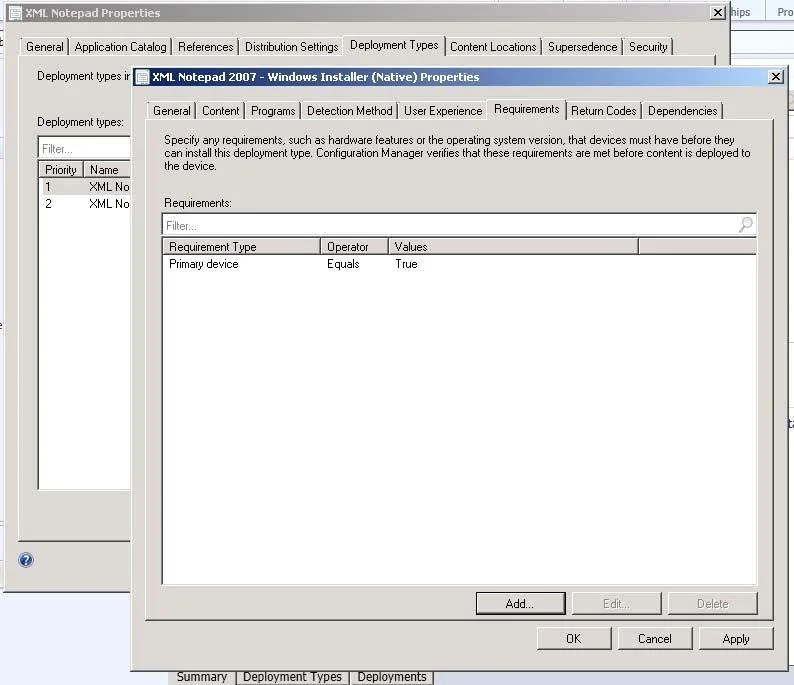
Options
- AIn a requirement rule, set Organization Unit = Sales.
- BIn a requirement rule, set Primary Device = True.
- CIn Client Settings, set Allow user to define their primary devices to False.
- DIn Client Settings, set Allow user to define their primary devices to True.
How the community answered
(55 responses)- A13% (7)
- B80% (44)
- C5% (3)
- D2% (1)
Explanation
How to Manage User Device Affinity in Configuration Manager User device affinity in Microsoft System Center 2012 Configuration Manager is a method of associating a user with one or more specified devices. User device affinity can eliminate the need to know the names of a user’s devices in order to deploy an application to that user. Instead of deploying the application to all of the user’s devices, you deploy the application to the user. Then, user device affinity automatically ensures that the application install on all devices that are associated with that user. You can define primary devices. These are typically the devices that users use on a daily basis to perform their work. When you create an affinity between a user and a device, you gain more software deployment options. For example, if a user requires Microsoft Office Visio, you can install it on the user’s primary device by using a Windows Installer deployment. However, on a device that is not a primary device, you might deploy Microsoft Office Visio as a virtual application. You can also use user device affinity to predeploy software on a user’s device when the user is not logged in. Then, when the user logs on, the application is already installed and How to Create Deployment Types in Configuration Manager Steps to Create a Deployment Type Step 1: Start the Create Deployment Type Wizard. Step 2: Specify whether you want to automatically detect or to manually define the deployment type information. Step 3: Specify the content options for the deployment type. Step 4: Configure the detection methods to indicate the presence of the application. Step 5: Specify the user experience options for the deployment type. Step 6: Specify the requirements for the deployment type. Requirements are used to specify the conditions that must be met before a deployment type can be installed on a client device. Step 7: Specify the dependencies for the deployment type. Step 8: Confirm the deployment type settings and complete the wizard. Step 9: Configure additional options for the deployment types that contain virtual applications. Step 6: Specify Requirements for the Deployment Type 1. On the Requirements page of the Create Deployment Type Wizard, click Add to open the Create Requirement dialog box, and add a new requirement. 2. From the Category drop-down list, select whether this requirement is for a device or a user, or select Custom to use a previously created global condition. When you select Custom, you can also click Create to create a new global condition. Important: If you create a requirement of the category User and the condition Primary Device, and then deploy the application to a device collection, the requirement will evaluate as false. 3. From the Condition drop-down list, select the condition that you want to use to assess whether the user or device meets the installation requirements. The contents of this list will vary depending on the selected category. 4. From the Operator drop-down list, choose the operator that will be used to compare the selected condition to the specified value to assess whether the user or device meets in the installation requirement. The available operators will vary depending on the selected 5. In the Value field, specify the values that will be used with the selected condition and operator whether the user or device meets in the installation requirement. The available values will vary depending on the selected condition and the selected operator. 6. Click OK to save the requirement rule and exit the Create Requirement dialog box. 7. On the Requirements page of the Create Deployment Type Wizard, click Next.
Topics
Community Discussion
No community discussion yet for this question.