
2V0-62.23 · Question #97
Drag and Drop Question Order the steps taken by an administrator to setup the integration between Dynamic Environment Manager and Workspace ONE. Order responses from left to right. Answer:
The correct answer is Install the Dynamic Environment Manager console in Integration Mode.; Deploy the Dynamic Environment Manager agent in Integration Mode.; Create the Dynamic Environment Manager configuration file.; Create a Windows 10 Device Profile containing DEMConfig file. DEM + Workspace ONE Integration - Step-by-Step Explanation Why This Order? The sequence follows a fundamental IT principle: infrastructure before configuration, configuration before delivery. You must have the tools installed before you can create artifacts, and you must have…
Question
Drag and Drop Question Order the steps taken by an administrator to setup the integration between Dynamic Environment Manager and Workspace ONE. Order responses from left to right. Answer:
Exhibit
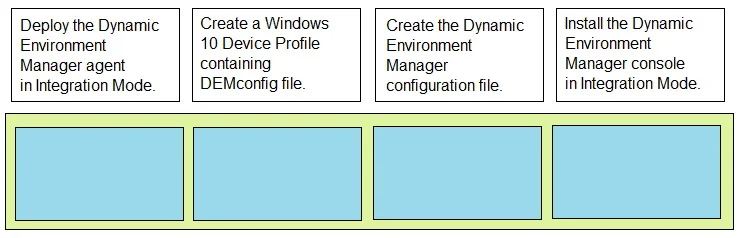
Answer Area
Drag items
Correct arrangement
- Install the Dynamic Environment Manager console in Integration Mode.
- Deploy the Dynamic Environment Manager agent in Integration Mode.
- Create the Dynamic Environment Manager configuration file.
- Create a Windows 10 Device Profile containing DEMConfig file.
Explanation
DEM + Workspace ONE Integration - Step-by-Step Explanation
Why This Order?
The sequence follows a fundamental IT principle: infrastructure before configuration, configuration before delivery. You must have the tools installed before you can create artifacts, and you must have artifacts before you can distribute them.
Step 1 - Install the Dynamic Environment Manager console in Integration Mode
Why first? The console is the administrative toolset. Nothing else can happen without it - it is what you use to create the configuration file in step 3. Selecting Integration Mode during installation is critical because it configures the console to operate alongside Workspace ONE rather than in standalone (file-share-based) mode. If you installed it in the wrong mode, you would have to reinstall before proceeding.
Common mistake: Skipping mode selection or defaulting to standalone mode, then discovering later that the Workspace ONE integration hooks are missing.
Step 2 - Deploy the Dynamic Environment Manager agent in Integration Mode
Why second? The agent is the client-side component that runs on each endpoint and applies the DEM policies. It must also be deployed in Integration Mode so it knows to receive its configuration via Workspace ONE rather than a traditional file share. The agent deployment comes before config creation because the agent's mode determines the expected configuration format.
Common mistake: Deploying the agent in standard mode - it will not poll Workspace ONE for the DEMConfig file, so policies will never apply.
Step 3 - Create the Dynamic Environment Manager configuration file
Why third? With the console installed and the agent deployed, you now have the context to build a meaningful configuration. The DEMConfig file defines all user environment policies (drive mappings, application settings, shortcuts, etc.). This file is the payload that will eventually be packaged and distributed. You cannot create it before the console exists, and you cannot put it in a Workspace ONE profile before it exists.
Common mistake: Trying to build this file before the console is installed, or assuming a default config is automatically generated.
Step 4 - Create a Windows 10 Device Profile containing DEMConfig file
Why last? The Workspace ONE Device Profile is the delivery vehicle - it wraps the DEMConfig file and pushes it to managed Windows 10 endpoints through the Workspace ONE UEM platform. This step is necessarily last because:
- The DEMConfig file (step 3) must exist to be embedded in the profile.
- The agents (step 2) must already be deployed in Integration Mode to consume the profile payload.
Common mistake: Creating the Device Profile before the DEMConfig file is finalized, resulting in an empty or outdated profile being pushed to devices.
Summary Table
| # | Step | Dependency |
|---|---|---|
| 1 | Install DEM console (Integration Mode) | Nothing - this is the foundation |
| 2 | Deploy DEM agent (Integration Mode) | Console must exist to validate deployment |
| 3 | Create DEMConfig file | Console required to author it |
| 4 | Create Workspace ONE Device Profile with DEMConfig | Config file must exist to package it |
Topics
Community Discussion
No community discussion yet for this question.