
2V0-51.23 · Question #53
Hotspot Question An administrator wants to set the initial login into a VDI desktop to be full screen. In the Group Policy Management Editor Window, mark the setting that needs to be configured by…
VDI Full Screen Group Policy - Hotspot Question Explained Context This question lacks a visible screenshot (hotspot questions require clicking an image), but the underlying technical concept is well-defined and testable. --- The Core Concept VDI (Virtual Desktop Infrastructure)…
Question
Hotspot Question An administrator wants to set the initial login into a VDI desktop to be full screen. In the Group Policy Management Editor Window, mark the setting that needs to be configured by clicking on it. A.
Exhibits
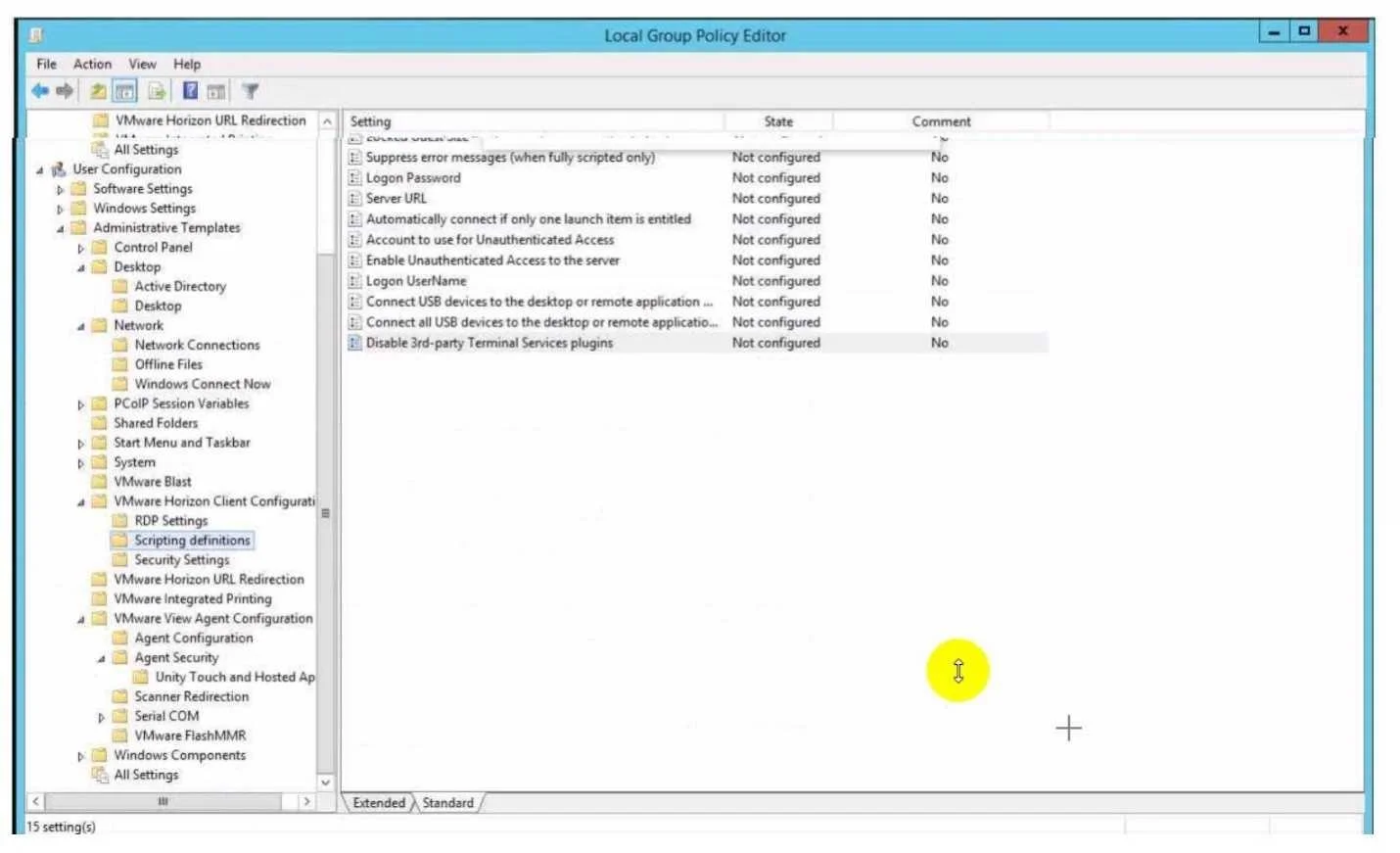
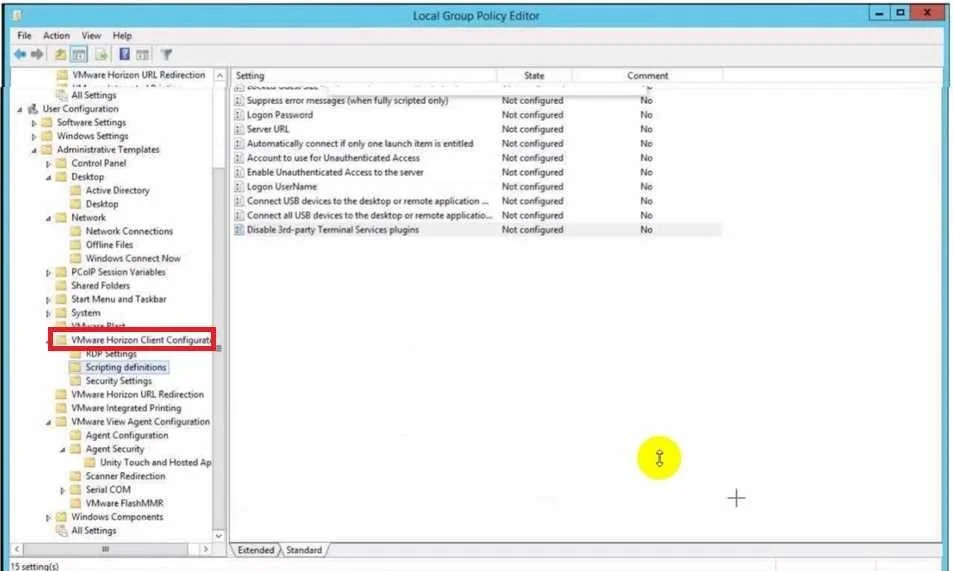
Answer Area
- Hotspot Question An administrator wants to set the initial login into a VDI desktop to be full screen. In the Group Policy Management Editor Window, mark the setting that needs to be configured by clicking on it. A.
Explanation
VDI Full Screen Group Policy - Hotspot Question Explained
Context
This question lacks a visible screenshot (hotspot questions require clicking an image), but the underlying technical concept is well-defined and testable.
The Core Concept
VDI (Virtual Desktop Infrastructure) sessions are delivered via Remote Desktop Services (RDS). Group Policy controls their display behavior.
To force the initial login to launch in full screen, the administrator must configure:
Path in Group Policy Management Editor:
Computer Configuration
  └─ Administrative Templates
       └─ Windows Components
            └─ Remote Desktop Services
                 └─ Remote Desktop Connection Client
                      └─ "Start the Remote Desktop Connection client in full screen mode"
Setting this to Enabled forces all RDS/VDI sessions to open full screen on first login.
Why This Setting (Not Others)
| Setting | Why It's Wrong |
|---|---|
| Remote Session Environment > Display settings | Controls resolution, not full-screen mode |
| RD Gateway policies | Controls connectivity/routing, not display |
| RD Session Host > Wallpaper | Aesthetic only |
| Connections > Number of connections | Limits sessions, not display behavior |
Memory Tip
"Client controls how you see it, Host controls what you get."
Full-screen behavior is a client-side display setting - so look under Remote Desktop Connection Client, not Remote Desktop Session Host.
Statement 1 Answer
The correct setting to configure is the "Start the Remote Desktop Connection client in full screen mode" policy under the Remote Desktop Connection Client node - Yes, this is the correct answer because it directly governs the display mode at initial connection, which is exactly what the administrator needs.
Topics
Community Discussion
No community discussion yet for this question.