
1V0-61.21 · Question #31
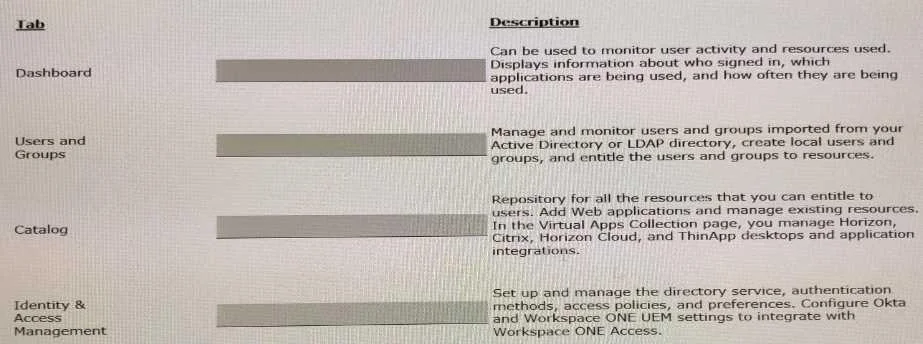
Drag and Drop Question Match the Workspace ONE Access navigation tab on the left to Its description on the right by dragging the tab into the correct box. Answer:
The correct answer is Dashboard: Can be used to monitor user activity and resources used. Displays information about the number of active applications being used, and how often they are being used.; Users and Groups: Manage and monitor users and groups imported from your Active Directory or LDAP directory; create local users and groups; and assign users and groups roles and rights.; Catalog: Repository for all the resources that you can entitle to users. Add Web applications and manage existing resources. Create and manage ThinApp packages, VMware Horizon, Horizon Cloud, and ThinApp desktops and application integrations.; Identity & Access Management: Set up and manage the directory service, authentication methods, network ranges, and other aspects of how OAA and Workspace ONE UEM settings to integrate with Workspace ONE Access. Workspace ONE Access Navigation Tabs - Explained This question tests whether you know the purpose of each major section in the Workspace ONE Access admin console. Here's why each item belongs where it does: --- 1. Dashboard → Monitor user activity and resources Why: The…
Question
Drag and Drop Question Match the Workspace ONE Access navigation tab on the left to Its description on the right by dragging the tab into the correct box. Answer:
Exhibit
Answer Area
Drag items
Correct arrangement
- Dashboard: Can be used to monitor user activity and resources used. Displays information about the number of active applications being used, and how often they are being used.
- Users and Groups: Manage and monitor users and groups imported from your Active Directory or LDAP directory; create local users and groups; and assign users and groups roles and rights.
- Catalog: Repository for all the resources that you can entitle to users. Add Web applications and manage existing resources. Create and manage ThinApp packages, VMware Horizon, Horizon Cloud, and ThinApp desktops and application integrations.
- Identity & Access Management: Set up and manage the directory service, authentication methods, network ranges, and other aspects of how OAA and Workspace ONE UEM settings to integrate with Workspace ONE Access.
Explanation
Workspace ONE Access Navigation Tabs - Explained
This question tests whether you know the purpose of each major section in the Workspace ONE Access admin console. Here's why each item belongs where it does:
1. Dashboard → Monitor user activity and resources
Why: The Dashboard is always the at-a-glance overview. In Workspace ONE Access specifically, it surfaces metrics on active app usage and frequency - think of it as your "health monitor" for the environment. It's read-only telemetry, not configuration.
Common mistake: Confusing Dashboard with Reports. The Dashboard shows live/summary data; reports give historical exports.
2. Users and Groups → Manage directory-imported users, local users, roles
Why: This tab is your identity store management layer. It handles both synced identities (from AD/LDAP) and locally created ones, and it's where you assign roles/rights (RBAC). It does not configure how the directory connects - that's a different tab.
Common mistake: Thinking directory configuration (sync settings, connector setup) lives here. It doesn't - that's Identity & Access Management. Users and Groups is for managing the identities after they're imported.
3. Catalog → Repository of entitled resources (apps, desktops, ThinApps)
Why: The Catalog is the app store back-end. Every resource users can access - SaaS apps, Horizon desktops, ThinApp packages, Horizon Cloud integrations - lives here. You add, manage, and entitle resources from this tab.
Common mistake: Thinking authentication or access policies are configured here. The Catalog is purely about what resources exist and who gets them, not how users prove identity.
4. Identity & Access Management → Directory service, auth methods, network ranges, UEM integration
Why: This is the configuration hub for how users authenticate and how the system integrates with external services (directory connectors, MFA methods, Workspace ONE UEM). It covers the full auth pipeline: directory setup → network ranges → auth methods → policies.
Common mistake: Conflating this with Users and Groups. IAM is about the infrastructure and policies that govern access; Users and Groups is about the individuals and their permissions within that infrastructure.
Quick Memory Aid
| Tab | One-word role |
|---|---|
| Dashboard | Observe |
| Users and Groups | Manage identities |
| Catalog | Manage resources |
| Identity & Access Management | Configure auth |
The tabs flow logically: configure auth (IAM) → import users (Users & Groups) → assign resources (Catalog) → watch it all (Dashboard).
Topics
Community Discussion
No community discussion yet for this question.