
SALESFORCE-ASSOCIATE · Question #126
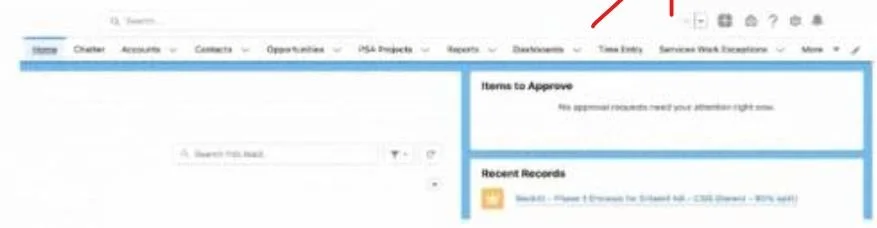
Refer to the screenshot that shows the Home page. A Salesforce associate wants to reorder items in their instance so the Reports tab appears immediately after Home. What should the associate do to…
The correct answer is A. Select the personalization button (pencil icon), then click and drag the item name up or down to. Selecting the personalization button (pencil icon), then clicking and dragging the item name up or down to adjust its location is the correct way to customize the items on the navigation bar, as shown in the screenshot.
Question
Refer to the screenshot that shows the Home page. A Salesforce associate wants to reorder items in their instance so the Reports tab appears immediately after Home. What should the associate do to customize the items on the navigation bar?
Exhibit
Options
- ASelect the personalization button (pencil icon), then click and drag the item name up or down to
- BUse the downward arrow next to each item name, then select Move to move the item left or right.
- CClick the Setup gear icon at the top right of the page, then select User Interface and then Tabs.
How the community answered
(27 responses)- A93% (25)
- B4% (1)
- C4% (1)
Explanation
Selecting the personalization button (pencil icon), then clicking and dragging the item name up or down to adjust its location is the correct way to customize the items on the navigation bar, as shown in the screenshot.
Topics
Community Discussion
No community discussion yet for this question.