
PL-100 · Question #269
Drag and Drop Question A company uses Power Apps. You design the interface for a new model-driven app. Users must interact with data from records related to the primary record form in the following…
The correct answer is Main form dialog; Quick view form. This question tests the understanding of Power Apps model-driven form types and their specific use cases for interacting with related records and their associated business processes or data displays.
Question
Exhibit
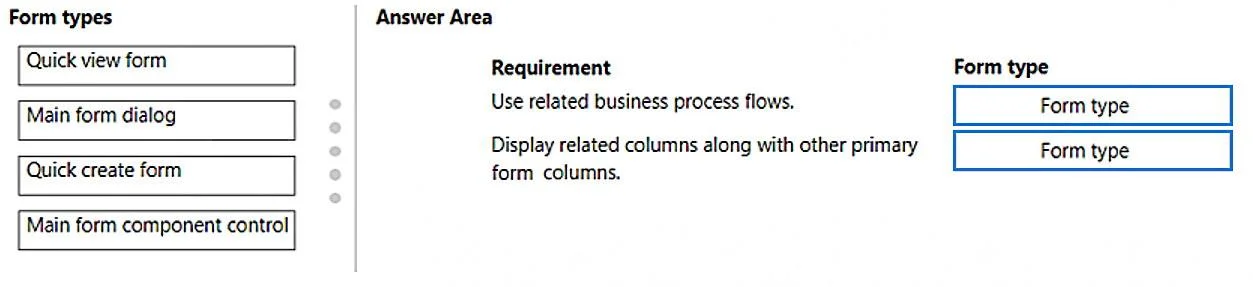
Answer Area
Drag items
Correct arrangement
- Main form dialog
- Quick view form
Explanation
This question tests the understanding of Power Apps model-driven form types and their specific use cases for interacting with related records and their associated business processes or data displays.
Approach. To fulfill the requirement 'Use related business process flows,' the 'Main form dialog' should be dragged to its corresponding slot. A Main form dialog opens the main form of a related record in a modal window, allowing full interaction with that related record, including its associated business process flows (BPFs), without navigating away from the primary record's form. This provides the complete context necessary to 'use' the related record's BPF.
To fulfill the requirement 'Display related columns along with other primary form columns,' the 'Quick view form' should be dragged to its corresponding slot. A Quick view form is specifically designed to display selected fields (columns) from a related record directly on the primary record's main form. It allows users to see summary information from a lookup record without needing to open the related record, thus effectively displaying related columns alongside the primary form's own columns.
Common mistakes.
- common_mistake. Using 'Quick create form' for either requirement is incorrect because it is designed for quickly creating new records with a minimal set of fields, not for displaying existing related data or interacting with business process flows of existing related records.
Using 'Main form component control' for 'Use related business process flows' is less appropriate than a 'Main form dialog'. While a Main form component control can embed a related entity's main form (which would include its BPF) directly into the primary form, a dialog provides a dedicated, focused interaction for the related record, often better suited for engaging with a distinct business process flow. For 'Display related columns along with other primary form columns', while the 'Main form component control' could display related columns, it embeds the entire related form, which is more complex than simply displaying columns. The 'Quick view form' is the most direct and efficient solution specifically for displaying related columns in a summary fashion without embedding full interactive capabilities, aligning perfectly with the requirement to 'display related columns'.
Concept tested. The core concept being tested is the understanding of different form types available in Power Apps model-driven apps and their specific functional capabilities, particularly in the context of displaying and interacting with related entity data and business process flows. This includes differentiating between Quick view forms, Main form dialogs, Quick create forms, and Main form component controls based on their intended use cases for data display, record creation, and interactive workflows.
Topics
Community Discussion
No community discussion yet for this question.