
PCCSE · Question #135
Drag and Drop Question Put the steps involved to configure and scan using the IntelliJ plugin in the correct order. Answer:
The correct answer is Install IntelliJ IDE; Add Prisma Cloud plugin; Configure the Prisma Cloud plugin; Scan using the Prisma Cloud plugin. The question requires arranging the steps for setting up and using the Prisma Cloud plugin within IntelliJ IDEA in the correct chronological order.
Question
Drag and Drop Question Put the steps involved to configure and scan using the IntelliJ plugin in the correct order. Answer:
Exhibit
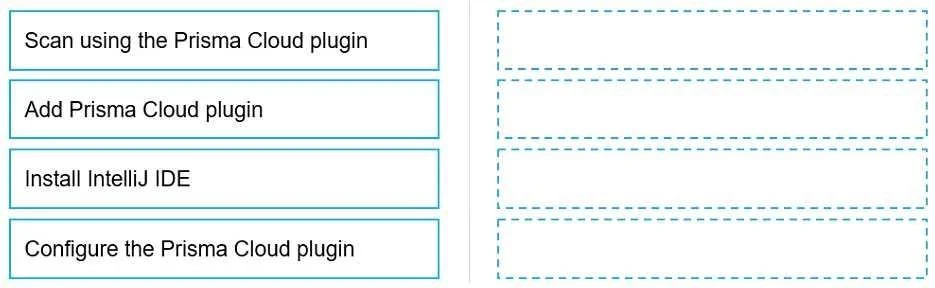
Answer Area
Drag items
Correct arrangement
- Install IntelliJ IDE
- Add Prisma Cloud plugin
- Configure the Prisma Cloud plugin
- Scan using the Prisma Cloud plugin
Explanation
The question requires arranging the steps for setting up and using the Prisma Cloud plugin within IntelliJ IDEA in the correct chronological order.
Approach. The correct interaction involves dragging the steps into the target boxes on the right in a logical, chronological sequence for setting up and using an IDE plugin. The order should be as follows:
- Install IntelliJ IDE: Before any plugins can be added or used, the core Integrated Development Environment (IDE) itself must be installed on the system.
- Interaction: Drag 'Install IntelliJ IDE' to the first target box.
- Add Prisma Cloud plugin: Once IntelliJ IDE is installed, the next logical step is to install or add the specific plugin, in this case, the Prisma Cloud plugin, into the IDE.
- Interaction: Drag 'Add Prisma Cloud plugin' to the second target box.
- Configure the Prisma Cloud plugin: After the plugin has been added, it typically needs to be configured with credentials, API endpoints, or specific settings before it can be effectively used.
- Interaction: Drag 'Configure the Prisma Cloud plugin' to the third target box.
- Scan using the Prisma Cloud plugin: Finally, once the plugin is installed and properly configured, it can be utilized to perform its intended function, which is scanning.
- Interaction: Drag 'Scan using the Prisma Cloud plugin' to the fourth target box.
Common mistakes.
- common_mistake. A common mistake would be to misorder the fundamental steps, such as attempting to add or configure a plugin before the base IntelliJ IDE is installed. For example, placing 'Install IntelliJ IDE' anywhere other than the first step is incorrect, as plugins depend on the IDE. Another mistake would be to scan before configuring the plugin, as an unconfigured plugin may not function correctly or might use default, unsecured, or incorrect settings. The order shown in the second image ('Add Prisma Cloud plugin', 'Configure the Prisma Cloud plugin', 'Scan using the Prisma Cloud plugin', 'Install IntelliJ IDE') is fundamentally wrong because the IDE must be installed before a plugin can be added to it.
Concept tested. The core concept being tested is the logical sequence of operations for software installation, configuration, and usage, particularly in the context of an Integrated Development Environment (IDE) and its extensions or plugins. It assesses understanding of prerequisites and dependencies in a typical software setup workflow.
Topics
Community Discussion
No community discussion yet for this question.