
MO-100 · Question #4
In the blank paragraph after the document title, insert a table of contents. Use the Automatic Table 1 style.
To insert a table of contents, the test-taker must first position the cursor in the specified location, then navigate to the 'References' tab, select 'Table of Contents', and choose the 'Automatic Table 1' style.
Question
Exhibits
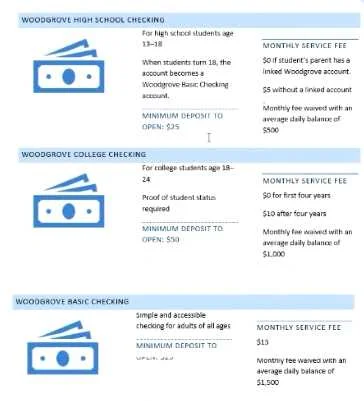
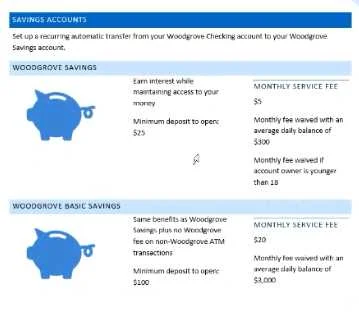
Explanation
To insert a table of contents, the test-taker must first position the cursor in the specified location, then navigate to the 'References' tab, select 'Table of Contents', and choose the 'Automatic Table 1' style.
Approach. 1. The first step is to accurately identify and click within the 'blank paragraph after the document title' to place the cursor at the desired insertion point. This is crucial for the table of contents to appear in the correct location. 2. Next, the test-taker must navigate to the 'References' tab in the word processor's ribbon interface. This tab is where all features related to citations, bibliographies, indexes, and tables of contents are typically located. 3. Within the 'References' tab, locate the 'Table of Contents' group and click on the 'Table of Contents' button. This action will open a dropdown menu displaying various table of contents styles. 4. From the dropdown menu, select 'Automatic Table 1'. This choice directly fulfills the requirement specified in the question regarding the style to be used. This sequence of actions ensures the table of contents is inserted at the correct location with the specified style, leveraging the document's existing heading structure.
Common mistakes.
- common_mistake. Common mistakes include attempting to find the Table of Contents feature under incorrect tabs such as 'Insert' (for inserting objects, pages, etc.), 'Home' (for basic formatting), or 'Layout' (for page setup). Another frequent error is selecting the wrong table of contents style, such as 'Automatic Table 2' or a 'Manual Table', instead of the 'Automatic Table 1' explicitly requested. Incorrectly positioning the cursor before inserting the table of contents would also lead to the table appearing in the wrong part of the document. Finally, some might not understand that a table of contents automatically populates based on document headings (like Heading 1, Heading 2, etc.), and if these styles are not correctly applied in the document, the table of contents would appear empty or incorrect.
Concept tested. The core concept being tested is the ability to use advanced document formatting features in a word processing application, specifically inserting and customizing a Table of Contents. This includes understanding the application's interface navigation (ribbon tabs and groups), the purpose of different document elements, and how to apply specific formatting styles as instructed.
Topics
Community Discussion
No community discussion yet for this question.