
MD-102 · Question #321
You have a Microsoft Deployment Toolkit (MDT) deployment share. From the Deployment Workbench, you open the New Task Sequence Wizard and select the Standard Client Upgrade Task Sequence task…
The correct answer is B. Import a full set of source files. The Standard Client Upgrade Task Sequence in MDT is designed for Windows in-place upgrades and requires full Windows installation source files (the complete Windows Setup media, not a captured WIM image). The 'Select OS' page is empty because MDT has no upgrade-capable source…
Question
You have a Microsoft Deployment Toolkit (MDT) deployment share. From the Deployment Workbench, you open the New Task Sequence Wizard and select the Standard Client Upgrade Task Sequence task sequence template. You discover that there are no operating system images listed on the Select OS page as shown in the following exhibit. You need to be able to select an operating system image to perform a Windows 11 in-place upgrade. What should you do?
Exhibit
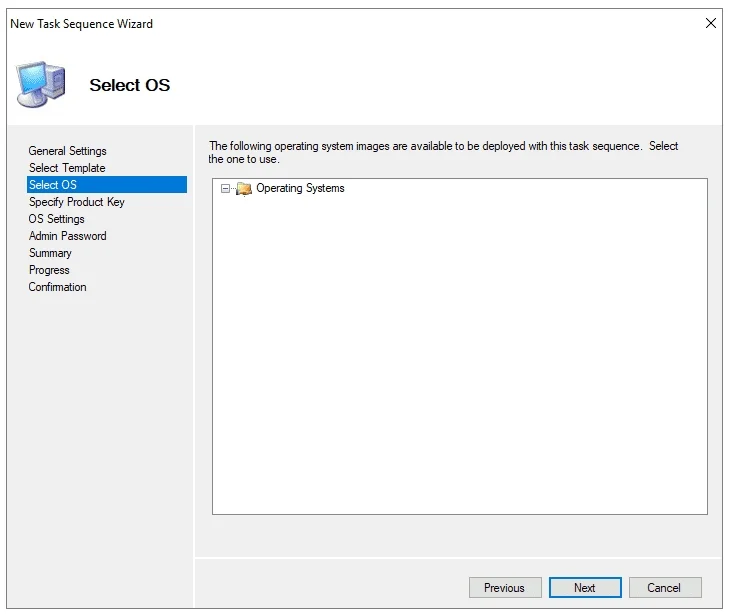
Options
- AEnable monitoring for the deployment share.
- BImport a full set of source files.
- CImport a custom image file.
- DRun the Update Deployment Share Wizard.
How the community answered
(42 responses)- A7% (3)
- B76% (32)
- C5% (2)
- D12% (5)
Explanation
The Standard Client Upgrade Task Sequence in MDT is designed for Windows in-place upgrades and requires full Windows installation source files (the complete Windows Setup media, not a captured WIM image). The 'Select OS' page is empty because MDT has no upgrade-capable source imported - importing a full set of source files from Windows installation media (e.g., the ISO or DVD) provides the upgrade engine (setup.exe) and all components needed. A custom image file (C) is a captured WIM used for clean deployments, not in-place upgrades. Enabling monitoring (A) and running the Update Deployment Share Wizard (D) do not add OS sources.
Topics
Community Discussion
No community discussion yet for this question.