
MD-102 · Question #281
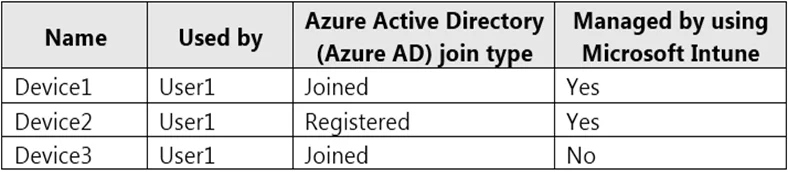
You have a Microsoft 365 tenant that contains the Windows 10 devices shown in the following table. You enable Enterprise State Roaming. You need to ensure that User1 can sync Windows settings across…
The correct answer is B. Join Device2 to Azure AD. For a Windows 10 or newer device to use the Enterprise State Roaming service, the device must authenticate using an Azure AD identity. For devices that are joined to Azure AD, the user's primary sign-in identity is their Azure AD identity, so no other configuration is required…
Question
You have a Microsoft 365 tenant that contains the Windows 10 devices shown in the following table. You enable Enterprise State Roaming. You need to ensure that User1 can sync Windows settings across the devices. What should you do?
Exhibit
Options
- ARemove Device1 and Device2 from Intune.
- BJoin Device2 to Azure AD.
- CAdd a Microsoft account to each device.
- DEnroll Device3 in Intune.
How the community answered
(22 responses)- A5% (1)
- B73% (16)
- C14% (3)
- D9% (2)
Explanation
For a Windows 10 or newer device to use the Enterprise State Roaming service, the device must authenticate using an Azure AD identity. For devices that are joined to Azure AD, the user's primary sign-in identity is their Azure AD identity, so no other configuration is required. https://docs.microsoft.com/en-us/azure/active-directory/devices/enterprise-state-roaming-enable
Topics
Community Discussion
No community discussion yet for this question.