
MB-820 · Question #48
Drag and Drop Question A company has the following custom permission set: You need to make the permission set visible on the Permission Sets page. Which three actions should you perform in sequence?…
The correct answer is Change the Assignable property value to true.; Add the DeactivateState = No property.; Add the app with permission set to an environment. Explanation: Making a Custom Permission Set Visible This question is from Microsoft Dynamics 365 Business Central AL development. A permission set defined in AL code won't appear on the Permission Sets page unless specific properties are correctly configured and the app is…
Question
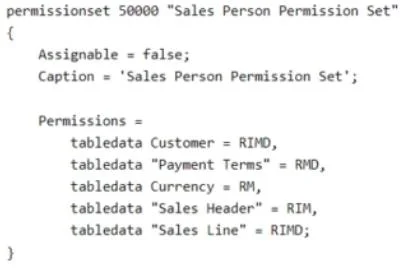
Drag and Drop Question A company has the following custom permission set:
You need to make the permission set visible on the Permission Sets page. Which three actions should you perform in sequence? To answer, move the appropriate actions from the list of actions to the answer area and arrange them in the correct order. NOTE: More than one order of answer choices is correct. You will receive credit for any of the correct orders you select. Answer:
Exhibit
Answer Area
Drag items
Correct arrangement
- Change the Assignable property value to true.
- Add the DeactivateState = No property.
- Add the app with permission set to an environment.
Explanation
Explanation: Making a Custom Permission Set Visible
This question is from Microsoft Dynamics 365 Business Central AL development. A permission set defined in AL code won't appear on the Permission Sets page unless specific properties are correctly configured and the app is deployed.
Why These Three Steps?
Step 1: Change the Assignable property value to true
This is the primary gating condition. In BC AL, the Assignable property controls whether a permission set appears on the Permission Sets page for user assignment. If Assignable = false (or is missing and defaults to false), the permission set is intentionally hidden - typically used for internal/base sets not meant to be directly assigned. Flipping it to true is the core fix that unlocks visibility.
Common mistake: Choosing "Remove the Assignable = false property" instead. While functionally similar, the correct idiomatic action is to set it to true, not just remove it. Removal may not produce the same result depending on the default behavior.
Step 2: Add the DeactivateState = No property
This marks the permission set as active. A permission set with a deactivated state won't render on the page even if it's assignable. This must be set before deployment so the correct state is packaged into the app.
Common mistake: Thinking this step is optional. A permission set can be
Assignable = truebut still hidden if it's in a deactivated state.
Step 3: Add the app with permission set to an environment
Code changes alone don't affect a live environment. The app must be deployed/published to the Business Central environment for the permission set to physically appear in the UI. This step must come last because it packages and delivers the prior configuration changes.
Common mistake: Trying to deploy before fixing the properties, then being confused why the permission set still doesn't appear.
Why the Other Items Are Wrong
| Item | Why Excluded |
|---|---|
| Add page "Permission Sets" to Permissions property | Grants access to the page - doesn't make your permission set appear on it |
Add/Remove IncludePermissionset = supers | Controls inheritance from another set - unrelated to visibility |
| Add tabledata "Expandon Permission" = RMD | Adds specific data permissions - doesn't affect whether the set is listed |
Key Takeaway
The logical dependency chain is: configure visibility → configure state → deploy. Steps 1 and 2 can sometimes be swapped (hence the note that multiple orders may be accepted), but deployment must always be last.
Topics
Community Discussion
No community discussion yet for this question.