MB-800 · Question #218
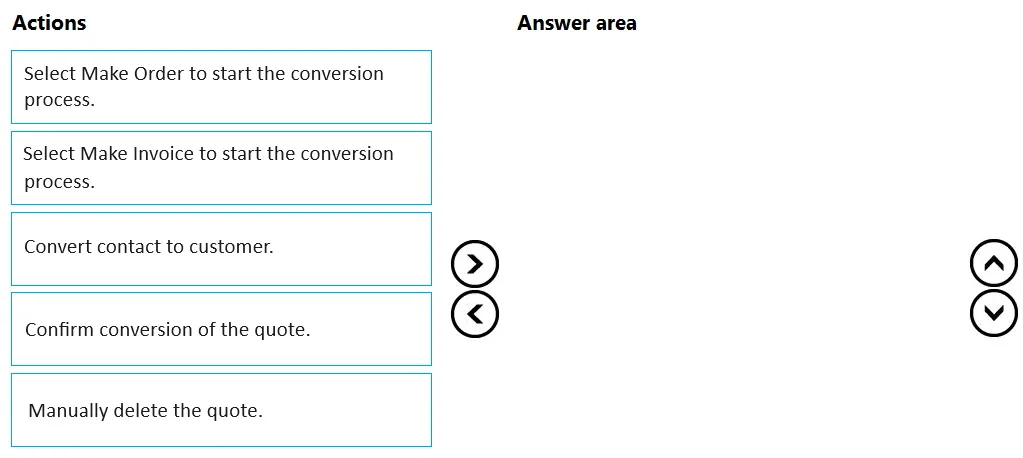
Drag and Drop Question A company uses Dynamics 365 Business Central. A user creates a quote for a contact. The contact accepts the quote. The user must convert the quote to a sales fulfillment…
The correct answer is Convert contact to customer.; Select Make Order to start the conversion process.; Confirm conversion of the quote. Dynamics 365 Business Central: Converting a Quote to a Sales Order Why This Sequence The quote was created for a contact, not a customer. Business Central's sales order process requires a customer record - contacts and customers are distinct entities in BC. This constraint…
Question
Exhibit
Answer Area
Drag items
Correct arrangement
- Convert contact to customer.
- Select Make Order to start the conversion process.
- Confirm conversion of the quote.
Explanation
Dynamics 365 Business Central: Converting a Quote to a Sales Order
Why This Sequence
The quote was created for a contact, not a customer. Business Central's sales order process requires a customer record - contacts and customers are distinct entities in BC. This constraint drives the entire sequence.
Step-by-Step Breakdown
Step 1: Convert contact to customer
Why first: Business Central cannot create a sales order against a contact. A contact exists in the CRM layer (Marketing); a customer exists in the sales/AR layer. If you attempt "Make Order" before this step, BC will prompt or block you because no customer record is linked. The conversion creates a customer card from the contact's data, establishing the required billing entity.
Common mistake: Assuming a contact and customer are interchangeable. They are not - this step is mandatory only when the quote was created for a contact, not an existing customer.
Step 2: Select Make Order to start the conversion process
Why second: Once a valid customer exists, you use the Make Order action on the quote ribbon to trigger the quote-to-order conversion. This is the correct action because the goal is a sales fulfillment order, not an invoice.
Common mistake: Selecting Make Invoice instead. "Make Invoice" skips the fulfillment/shipping stage entirely and jumps straight to billing - wrong for a fulfillment workflow. "Make Order" preserves the ability to pick, ship, then invoice.
Step 3: Confirm conversion of the quote
Why last: BC presents a confirmation dialog before finalizing the conversion. This is a system safeguard. Confirming it completes the conversion and automatically handles the quote (marks it as converted or removes it).
Common mistake: Expecting to manually delete the quote afterward. You don't - BC handles quote cleanup automatically upon confirmed conversion. Manual deletion is unnecessary and not part of the standard process.
Summary Table
| # | Action | Reason |
|---|---|---|
| 1 | Convert contact to customer | Sales orders require a customer record; contacts alone are insufficient |
| 2 | Select Make Order | Targets a fulfillment order, not an invoice |
| 3 | Confirm conversion | System confirmation finalizes the conversion and auto-cleans the quote |
Eliminated items: "Make Invoice" produces the wrong document type; "Manually delete the quote" is handled automatically by the system.
Topics
Community Discussion
No community discussion yet for this question.