
MB-500 · Question #259
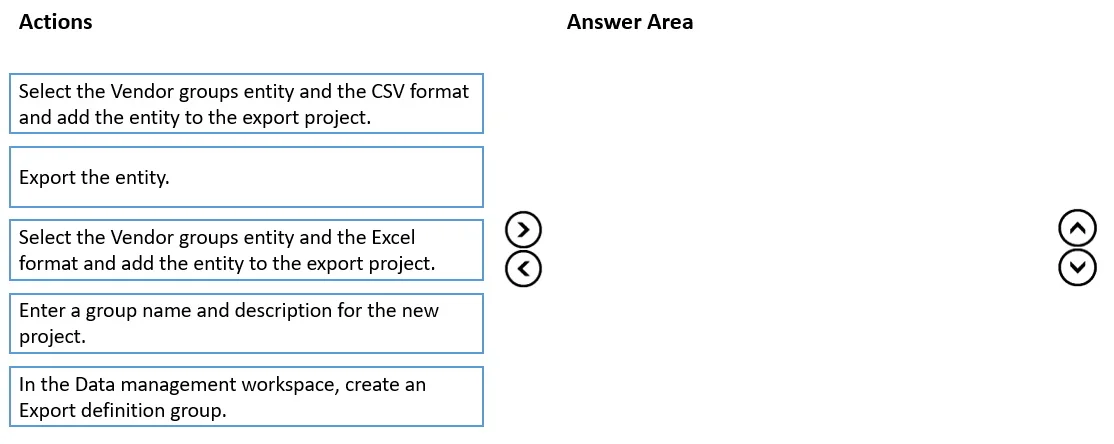
Drag and Drop Question A company uses Dynamics 365 Finance. You use the Data management workspace to export data. You must export all vendor groups in the company. The destination file must be a…
The correct answer is Enter a group name and description for the new project.; In the Data management workspace, create an Export definition group.; Select the Vendor groups entity and the Excel format and add the entity to the export project.; Export the entity. Dynamics 365 Finance: Exporting Vendor Groups via Data Management Why This Order? The sequence follows the logical workflow of the Data Management workspace: create a container → configure it → define what to export → execute the export. --- Step-by-Step Breakdown 1. Enter a…
Question
Exhibit
Answer Area
Drag items
Correct arrangement
- Enter a group name and description for the new project.
- In the Data management workspace, create an Export definition group.
- Select the Vendor groups entity and the Excel format and add the entity to the export project.
- Export the entity.
Explanation
Dynamics 365 Finance: Exporting Vendor Groups via Data Management
Why This Order?
The sequence follows the logical workflow of the Data Management workspace: create a container → configure it → define what to export → execute the export.
Step-by-Step Breakdown
1. Enter a group name and description for the new project.
Before anything else, you must name your export project. In Data Management, every export job lives inside a named project (called an "Export definition group"). The name/description is metadata that identifies the job - you can't add entities or configure settings without first initializing the project record. This is the foundational step.
2. In the Data management workspace, create an Export definition group.
This step creates the actual export project container in the system. Logically, you provide the name during the creation flow, which is why naming (Step 1) and creation (Step 2) are tightly coupled - but the prompt separates the input action (entering the name) from the system action (creating the group). The project must exist before you can attach entities to it.
3. Select the Vendor groups entity and the Excel format and add the entity to the export project.
Once the project exists, you configure what to export and how. You choose:
- Entity: Vendor groups (the data set you want)
- Format: Excel (.xlsx) - as required by the scenario
This step is intentionally placed here because the entity and format are properties of the project, not prerequisites to creating it.
4. Export the entity.
Only after full configuration do you trigger the actual export. Dynamics 365 processes the job and generates the output file. Executing before configuring would produce nothing meaningful.
Common Mistakes & Misconceptions
| Mistake | Why It's Wrong |
|---|---|
| Choosing the CSV format option (the distractor) | The question explicitly requires .xlsx. CSV is a deliberate wrong answer to test attention to requirements. |
| Trying to select the entity before creating the project | The entity picker is part of the project setup - no project means nowhere to attach the entity. |
| Reversing steps 1 and 2 | In the UI, you enter the name as part of creating the group - but the exam separates intent from action, placing naming logically first. |
| Running the export immediately | Skipping entity/format configuration means the job has no data source defined - the export would fail or produce an empty result. |
Key Takeaway
The workflow is strictly Create → Configure → Execute. The distractor (CSV format) tests whether you read the file format requirement carefully. Always match the export format to what the scenario specifies.
Topics
Community Discussion
No community discussion yet for this question.