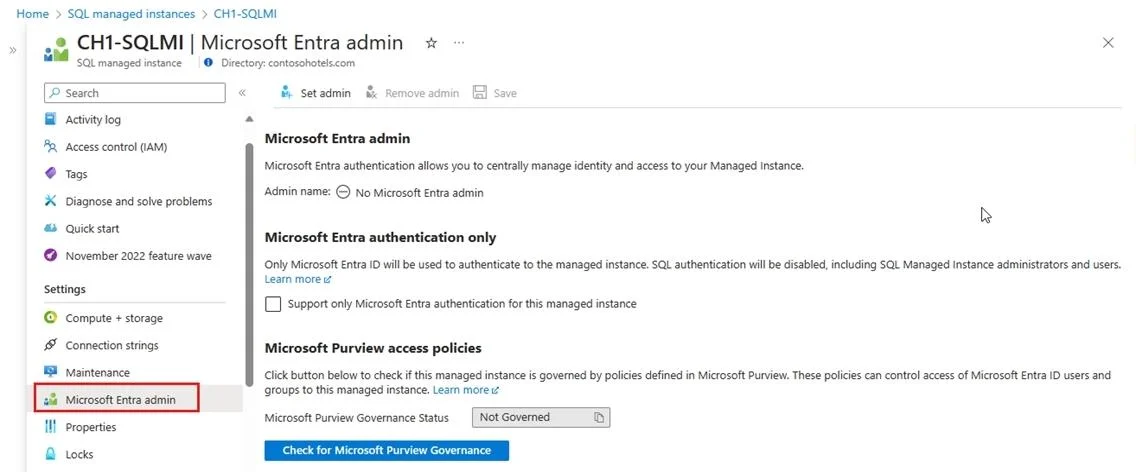
SIMULATION You need to configure your user account as the Microsoft Entra admin for the server named sql12345678. To complete this task, sign in to the virtual machine. You may need to use SQL Server Management Studio and the Azure portal. Answer: Manage administrator accounts in Azure Active Directory B2C You can assign a role when you create a user or invite a guest user. You can add a role, change the role, or remove a role for a user: Solution 1: Provision Microsoft Entra admin (SQL Managed Instance) Your SQL Managed Instance needs permission to read Microsoft Entra ID to accomplish tasks such as authentication of users through security group membership or creation of new users. For this to work, you must grant the SQL Managed Instance permission to read Microsoft Entra ID. You can do this using the Azure portal or PowerShell. To grant your SQL Managed Instance read permissions to Microsoft Entra ID using the Azure portal, sign in as a Global Administrator and follow these steps: Step 1: In the Azure portal, in the upper-right corner select your account, and then choose Switch directories to confirm which directory is your Current directory. Switch directories, if necessary. Step 2: Choose the correct Microsoft Entra directory as the Current directory. This step links the subscription associated with Microsoft Entra ID to the SQL Managed Instance, ensuring the Microsoft Entra tenant and SQL Managed Instance use the same subscription. Step 3: Now, you can choose your Microsoft Entra admin for your SQL Managed Instance. For that, go to your managed instance resource in the Azure portal and select Microsoft Entra admin under Settings. Step 4: Select the banner on top of the Microsoft Entra admin page and grant permission to the current user. Step 5: After the operation succeeds, the following notification will show up in the top-right corner: Step 6: On the Microsoft Entra admin page, select Set admin from the navigation bar to open the Microsoft Entra ID pane. Step 7: On the Microsoft Entra ID pane, search for a user, check the box next to the user or group to be an administrator, and then press Select to close the pane and go back to the Microsoft Entra admin page for your managed instance. [Select yourself] Step 8: From the navigation bar of the Microsoft Entra admin page for your managed instance, select Save to confirm your Microsoft Entra administrator. The process of changing the administrator might take several minutes. Then the new administrator appears in the Microsoft Entra admin box. Solution 2: Step 1: Sign in to the Azure portal with Global Administrator or Privileged Role Administrator permissions. Step 2: (If you have access to multiple tenants, select the Settings icon in the top menu to switch to your Azure AD B2C tenant from the Directories + subscriptions menu.) Step 3: Under Azure services, select Azure AD B2C. Or use the search box to find and select Azure AD B2C. Step 4: Under Manage, select Users. Step 5: Select the user you want to change the roles for. [Select your user account]. Then select Assigned roles. Step 6: Add a role assignment Step 7: Select Add assignments, select the role to assign (for example, Application administrator), [Select Microsoft Entra administrator] and then choose Add. Reference:
https://learn.microsoft.com/en-us/azure/azure-sql/database/authentication-aad-configure https://learn.microsoft.com/en-us/azure/active-directory-b2c/tenant-management-manage- administrator