
AZ-204 · Question #61
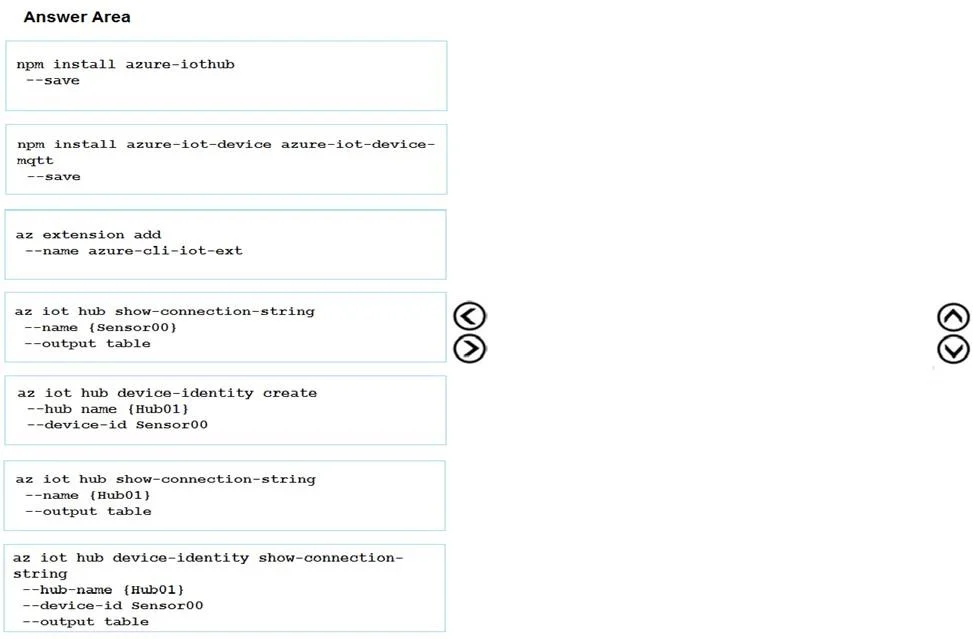
Drag and Drop Question You develop an IoT solution by using Node.js. The solution is ready to deploy to the production environment. You must implement the device twin capabilities of Azure IoT Hub…
The correct answer is az extension add --name azure-cli-iot-ext; az iot hub device-identity create --hub-name (Hub01) --device-id Sensor00; az iot hub device-identity show-connection-string --hub-name (Hub01) --device-id Sensor00 --output table; npm install azure-iot-hub --save. Azure IoT Hub Device Twin Registration - Explanation Overview This question asks you to set up a device twin in Azure IoT Hub using the Azure CLI and Node.js SDK. The correct four commands form a logical sequence: extend the CLI -> register the device -> get the device…
Question
Exhibit
Answer Area
Drag items
Correct arrangement
- az extension add --name azure-cli-iot-ext
- az iot hub device-identity create --hub-name (Hub01) --device-id Sensor00
- az iot hub device-identity show-connection-string --hub-name (Hub01) --device-id Sensor00 --output table
- npm install azure-iot-hub --save
Explanation
Azure IoT Hub Device Twin Registration - Explanation
Overview
This question asks you to set up a device twin in Azure IoT Hub using the Azure CLI and Node.js SDK. The correct four commands form a logical sequence: extend the CLI -> register the device -> get the device connection string -> install the server-side SDK.
Step-by-Step Breakdown
1. az extension add --name azure-cli-iot-ext
The Azure CLI does not include IoT commands by default. This extension must be installed first or all subsequent az iot commands will fail with "command not found." This is always the prerequisite step.
Common mistake: Skipping this step and jumping straight to device creation - the CLI won't recognize
az iot hub device-identitywithout the extension.
2. az iot hub device-identity create --hub-name (Hub01) --device-id Sensor00
This registers the device (Sensor00) in IoT Hub (Hub01), creating its device identity and twin. You cannot retrieve a connection string for a device that doesn't exist yet, so creation must come before querying.
Common mistake: Confusing
--hub-namewith--name. Thedevice-identitysubcommand uses--hub-name.
3. az iot hub device-identity show-connection-string --hub-name (Hub01) --device-id Sensor00 --output table
After the device is registered, you retrieve its device-specific connection string. This string is what the physical device (or simulator) uses to authenticate to IoT Hub. The question says you need to "register the endpoint with ContosoHub01 so you can configure them from your solution" - this connection string is that endpoint.
Common mistake: Using
az iot hub show-connection-string --name (Hub01)instead. That retrieves the hub-level connection string (for backend services), not the device-level one. The device needs its own credentials.
4. npm install azure-iot-hub --save
The azure-iot-hub package is the service SDK - used by your Node.js backend to interact with device twins (read/write desired/reported properties). This is the correct package for the server side of a device twin solution.
Common mistake: Choosing
npm install azure-iot-device azure-iot-device-mqtt --saveinstead. Those packages are for the device side (code running on the sensor itself), not for the backend solution managing twins. Since the question says "configure them from your solution," you need the service SDK.
Why the Other Items Are Wrong
| Discarded Command | Reason |
|---|---|
npm install azure-iot-device azure-iot-device-mqtt | Device-side SDK - for code running on Sensor00, not the management solution |
az iot hub show-connection-string --name (Sensor00) | Invalid - Sensor00 is a device, not a hub; wrong target |
az iot hub show-connection-string --name (Hub01) | Returns hub-owner connection string, not device twin credentials |
Key Concept
Device twins require two connection strings: one for the hub (service SDK, backend) and one for the device (device SDK, sensor). This question focuses on the backend management flow, hence azure-iot-hub is the right npm package.
Topics
Community Discussion
No community discussion yet for this question.