
Microsoft
AZ-204 · Question #311
Drag and Drop Question You provision virtual machines (VMs) as development environments. One VM does not start. The VM is stuck in a Windows update process. You attach the OS disk for the affected…
Sign in or unlock AZ-204 to reveal the answer and full explanation for question #311. The question stem and answer options stay visible for context.
Submitted by olafpl· Mar 30, 2026Troubleshoot and repair Azure Virtual Machines - specifically recovering a VM stuck in a failed Windows Update state using a recovery VM and DISM (Deployment Image Servicing and Management) tool, which falls under the Azure Administrator (AZ-104) domain of 'Monitor and Maintain Azure Resources' or 'Deploy and Manage Azure Compute Resources'.
Question
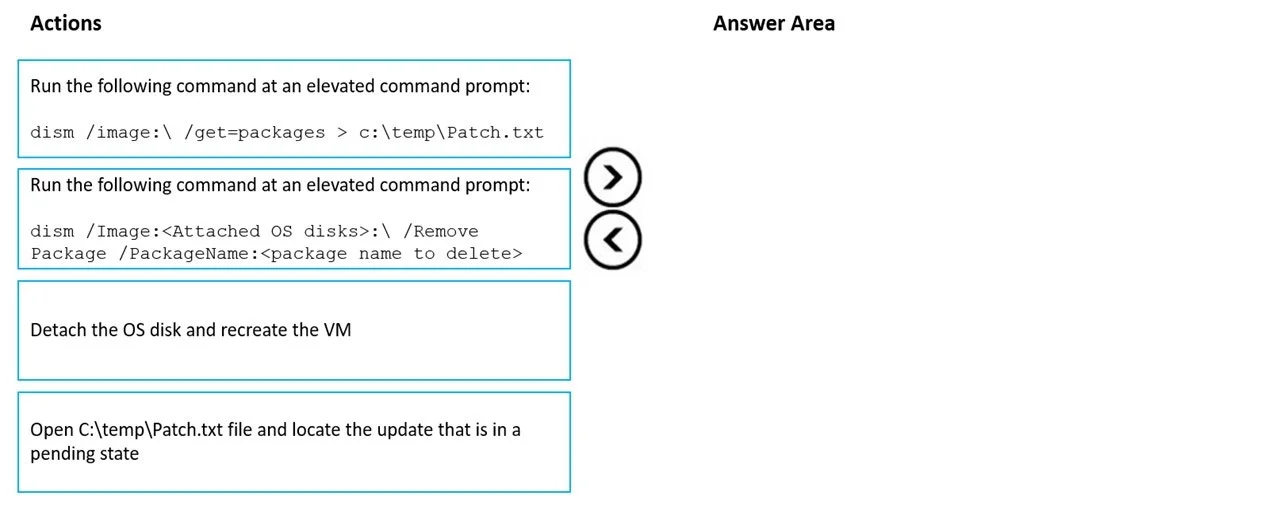
Drag and Drop Question You provision virtual machines (VMs) as development environments. One VM does not start. The VM is stuck in a Windows update process. You attach the OS disk for the affected VM to a recovery VM. You need to correct the issue. In which order should you perform the actions? To answer, move the appropriate actions from the list of actions to the answer area and arrange them in the correct order. Answer:
Exhibit
Answer Area
Drag items
Run the following command at an elevated command prompt:
dism /image:\ /get-packages > c:\temp\patch.txtRun the following command at an elevated command prompt:
dism /image:\ /Remove-Package /PackageName:<package name to delete>Detach the OS disk and recreate the VMOpen C:\temp\Patch.txt file and locate the update that is in a pending state.
Unlock AZ-204 to see the answer
You've previewed enough free AZ-204 questions. Unlock AZ-204 for full answers, explanations, the timed quiz mode, progress tracking, and the master PDF. Question stem and options stay visible so you can still see what's on the exam.
Topics
#Azure VM Recovery#DISM Command-Line Tool#Windows Update Troubleshooting#OS Disk Repair