
AZ-120 · Question #352
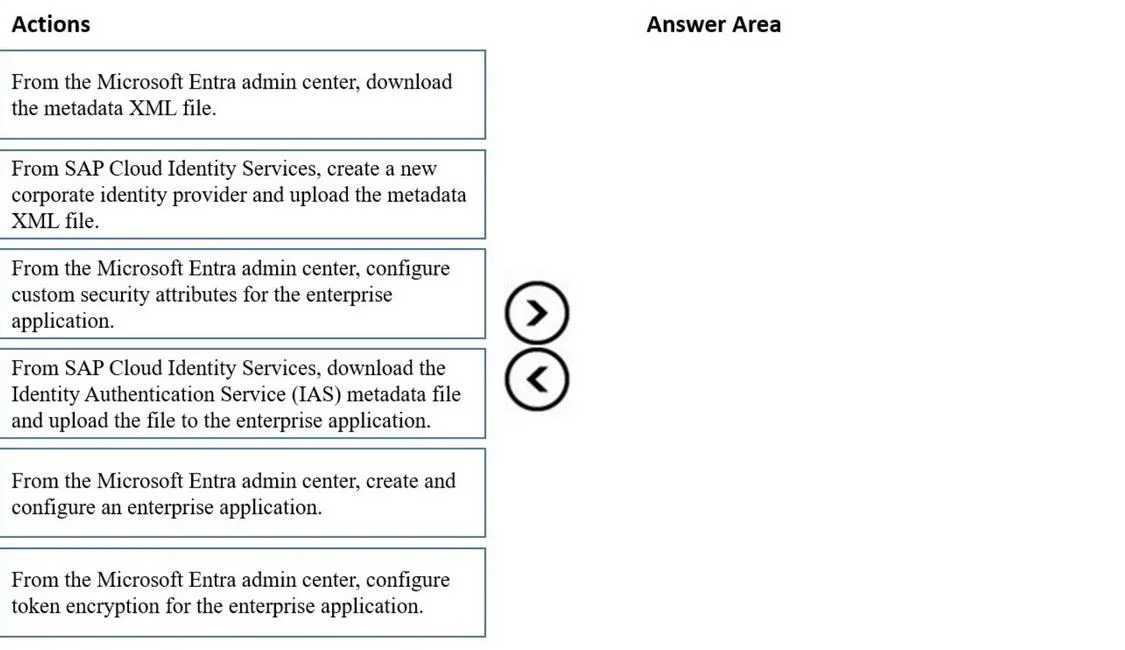
Drag and Drop Question You have a Microsoft Entra tenant named contoso.com. You plan to use SAP Cloud Identity Services. You need to integrate single sign-on (SSO) and SAP Cloud Identity Services…
The correct answer is From the Microsoft Entra admin center, create and configure an enterprise application.; From SAP Cloud Identity Services, create a new corporate identity provider and upload the metadata XML file.; From the Microsoft Entra admin center, download the metadata XML file.; From the Microsoft Entra admin center, configure custom security attributes for the enterprise application. SAP Cloud Identity Services SSO Integration with Microsoft Entra Overview of the Integration Pattern This question covers a SAML-based SSO federation setup. Microsoft Entra acts as the Identity Provider (IdP) and SAP Cloud Identity Services acts as the Service Provider (SP)…
Question
Exhibit
Answer Area
Drag items
Correct arrangement
- From the Microsoft Entra admin center, create and configure an enterprise application.
- From SAP Cloud Identity Services, create a new corporate identity provider and upload the metadata XML file.
- From the Microsoft Entra admin center, download the metadata XML file.
- From the Microsoft Entra admin center, configure custom security attributes for the enterprise application.
Explanation
SAP Cloud Identity Services SSO Integration with Microsoft Entra
Overview of the Integration Pattern
This question covers a SAML-based SSO federation setup. Microsoft Entra acts as the Identity Provider (IdP) and SAP Cloud Identity Services acts as the Service Provider (SP). The sequence follows a standard "configure IdP first, then connect SP" pattern.
Step-by-Step Breakdown
Step 1: Create and configure an enterprise application (Entra)
This must come first - no other steps are possible without it. Creating the enterprise application in Entra establishes the SAML SSO configuration, generates the federation endpoints, and creates the object that the remaining steps operate on. The SAP Cloud Identity Services application is available directly from the Entra gallery.
Step 2: Create a new corporate identity provider in SAP and upload the metadata XML file
Common confusion point: This step appears before the metadata download (Step 3), which seems logically reversed. In practice, you need the Entra metadata XML before you can upload it to SAP. The intended logic here may reflect that the corporate IdP structure is created, or that the question assumes the metadata XML URL (available immediately after app creation) can be used rather than a downloaded file. Treat steps 2 and 3 as tightly coupled - in real deployments, Step 3 logically precedes this upload action.
In SAP Cloud Identity Services admin console, you configure Entra as a trusted corporate IdP. This tells SAP to redirect authentication to Entra.
Step 3: Download the metadata XML file (Entra)
The federation metadata XML from Entra contains the SAML signing certificates, SSO endpoint URLs, and entity ID. This file is what SAP needs to validate tokens from Entra. Downloading it from the Entra enterprise application's SAML configuration page is the prerequisite for the SAP-side upload described in Step 2.
Step 4: Configure custom security attributes for the enterprise application (Entra)
This comes last because it refines and extends the integration after the core trust relationship is established. Custom security attributes map Entra user attributes to SAP roles or claims - you need the app and federation configured before attributes can be meaningfully mapped.
Items NOT in the Answer (and Why)
| Omitted Item | Why Excluded |
|---|---|
| Download IAS metadata and upload to enterprise app | This is the reverse-direction step (SP metadata → IdP). It's part of the full process but not among the four steps this question targets. |
| Configure token encryption | Optional/advanced hardening step, not part of the core SSO setup sequence. |
Key Misconceptions to Avoid
- Don't start with SAP. You must establish the Entra enterprise application first - SAP needs Entra's metadata, which only exists after the app is created.
- Custom security attributes are always last - they refine an already-working integration; they can't precede it.
- Steps 2 and 3 look swapped - flag this in exam prep. The correct real-world dependency is: download Entra XML → upload to SAP. If this question appears on your exam, follow the given answer as written.
Topics
Community Discussion
No community discussion yet for this question.