AZ-120 · Question #206
Drag and Drop Question You have an Azure virtual machine named VM1 that runs SUSE Linux Enterprise Server (SLES) and hosts an SAP NetWeaver application server. You need to install the Azure VM…
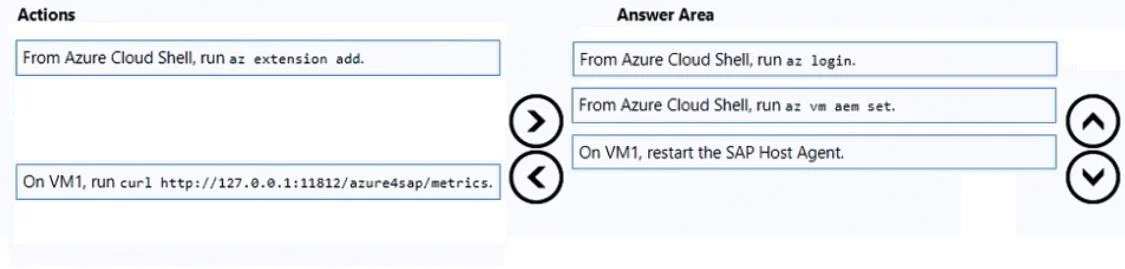
The correct answer is From Azure Cloud Shell, run az login.; From Azure Cloud Shell, run az vm ex set.; On VM1, restart the SAP Host Agent. Azure VM Extension for SAP Solutions - Step-by-Step Explanation The Correct Sequence --- Step 1: az login Before any Azure CLI command can interact with your subscription, you must authenticate. az login establishes an authenticated session with your Azure tenant. Without this…
Question
Drag and Drop Question You have an Azure virtual machine named VM1 that runs SUSE Linux Enterprise Server (SLES) and hosts an SAP NetWeaver application server. You need to install the Azure VM extension for SAP solutions on VM1. Which three actions should you perform in sequence? To answer, move all actions from the list of actions to the answer area and arrange them in the correct order. Answer:
Exhibit
Answer Area
Drag items
Correct arrangement
- From Azure Cloud Shell, run az login.
- From Azure Cloud Shell, run az vm ex set.
- On VM1, restart the SAP Host Agent.
Explanation
Azure VM Extension for SAP Solutions - Step-by-Step Explanation
The Correct Sequence
Step 1: az login
Before any Azure CLI command can interact with your subscription, you must authenticate. az login establishes an authenticated session with your Azure tenant. Without this, subsequent CLI commands have no identity or permissions to act on resources.
Common mistake: Assuming Cloud Shell auto-authenticates. While Cloud Shell can auto-authenticate in interactive sessions, exam scenarios treat
az loginas an explicit required step for any CLI workflow.
Step 2: az vm extension set
Once authenticated, you install the Azure VM Extension for SAP using az vm extension set. This command targets VM1 and deploys the extension (specifically AzureEnhancedMonitoringForLinux or the new MsSAP extension depending on version). The extension enables Azure to collect and expose infrastructure metrics that the SAP Host Agent needs.
Common mistake: Choosing
az extension addinstead. That command installs CLI extensions (plugins for theaztool itself), not VM extensions deployed onto a virtual machine. These are completely different concepts.
Step 3: Restart the SAP Host Agent on VM1
After the VM extension is deployed, the SAP Host Agent running on VM1 must be restarted so it detects and loads the newly available metrics endpoint provided by the extension. Without a restart, the Host Agent continues running with its old configuration and won't consume the new Azure monitoring data.
Why the Other Items Are Excluded
| Item | Why it's wrong |
|---|---|
az extension add | Adds a plugin to the Azure CLI tool itself - not what you need here |
curl http://127.0.0.1:11812/azure4sap/metrics | This is a verification step to test the extension is working, not part of installation |
Mental Model
Authenticate → Deploy extension onto VM → Restart agent to pick it up
Think of it like installing a driver: you need admin rights (login), install the driver (extension set), then restart the service that uses it (SAP Host Agent).
Topics
Community Discussion
No community discussion yet for this question.
