
9A0-303 · Question #189
Consider the given image: Which mode will you use to view this image using Adobe Bridge?
The correct answer is B. Review Mode. You can view multiple files at once by using Review Mode. To do so, select the files you want to review and, on the application bar, click the Refine button and choose Review Mode. You can also choose View > Review Mode or press Ctrl+B.Answer option D is incorrect. When you…
Question
Consider the given image:
Which mode will you use to view this image using Adobe Bridge?
Exhibit
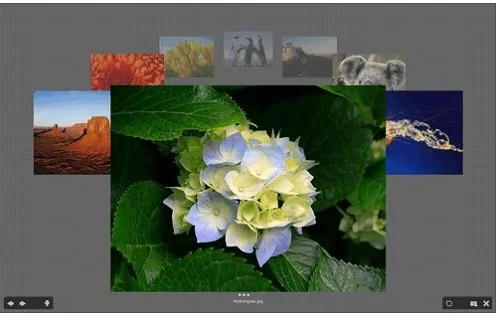
Options
- AView Mode
- BReview Mode
- COn-click preview Mode
- DPreview Mode
How the community answered
(19 responses)- A11% (2)
- B79% (15)
- C5% (1)
- D5% (1)
Explanation
You can view multiple files at once by using Review Mode. To do so, select the files you want to review and, on the application bar, click the Refine button and choose Review Mode. You can also choose View > Review Mode or press Ctrl+B.Answer option D is incorrect. When you select a file, Bridge automatically displays a preview of it in the Preview panel (if the Preview panel is open). You can drag the edges of the Preview panel to make it as large or small as you'd like. In addition, when you click in the Preview panel, the cursor becomes a loupe that you can use to magnify areas of the preview.Answer option A is incorrect. There is no view mode in Adobe Bridge.Answer option C is incorrect. With a file selected, press Spacebar to display the file in full- screen mode. When in fullscreen mode, click the file to enlarge it to 100%, and click again to zoom back to fullscreen view. Use the Left Arrow and Right Arrow keys to navigate to the next or previous photo. Click Spacebar again to return to Bridge.
Topics
Community Discussion
No community discussion yet for this question.