
9A0-303 · Question #115
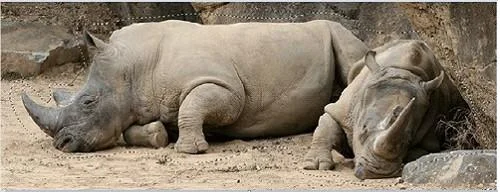
You work as professional photographer for WEBDESIGN Inc. You are working on below given image in Photoshop CS6. You want to display a semi-transparent colored overlay to differentiate between…
The correct answer is C. Quick Mask. One way to create a selection by painting is to use Quick Mask mode. This mode displays a semi-transparent colored overlay to differentiate between selected and non-selected areas. Answer option B is incorrect. Grayscale shows you white for completely selected pixels, gray for…
Question
You work as professional photographer for WEBDESIGN Inc. You are working on below given image in Photoshop CS6. You want to display a semi-transparent colored overlay to differentiate between selected and non-selected areas in this image. Which of the following modes will you choose to accomplish this task?
Exhibit
Options
- ABlend
- BGrayscale
- CQuick Mask
- DAdvance
How the community answered
(60 responses)- A12% (7)
- B3% (2)
- C78% (47)
- D7% (4)
Explanation
One way to create a selection by painting is to use Quick Mask mode. This mode displays a semi-transparent colored overlay to differentiate between selected and non-selected areas. Answer option B is incorrect. Grayscale shows you white for completely selected pixels, gray for partially selected ones, and black for unselected ones. Answer options D and A are incorrect. Advance and Blend modes do not display a semi-transparent colored overlay to differentiate between selected and non-selected areas.
Topics
Community Discussion
No community discussion yet for this question.