
74-697 · Question #35
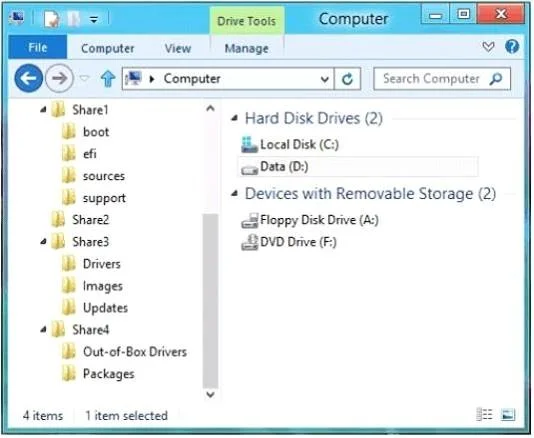
You have a server named Server1. Server1 contains shared folders as shown in the following exhibit. (Click the Exhibit button.) You need to configure one of the shared folders as a distribution…
The correct answer is D. Share4. Need the Packages folder. To import a package - Select and open a distribution share. For more information, see Open a Distribution Share. - On the Tools menu, select Import Package(s).The Select Package(s) to Import window opens. - Navigate to the file or folder, select the…
Question
You have a server named Server1. Server1 contains shared folders as shown in the following exhibit. (Click the Exhibit button.) You need to configure one of the shared folders as a distribution share from Windows System Image Manager (Windows SIM). Which shared folder should you select?
Exhibit
Options
- AShare1
- BShare2
- CShare3
- DShare4
How the community answered
(48 responses)- A17% (8)
- B8% (4)
- C4% (2)
- D71% (34)
Explanation
Need the Packages folder. To import a package - Select and open a distribution share. For more information, see Open a Distribution Share. - On the Tools menu, select Import Package(s).The Select Package(s) to Import window opens. - Navigate to the file or folder, select the file or folder, and then click Open or Open Folder.Windows SIM adds the selected package to the distribution share folder. The newly added package is displayed under the Packages node in the Distribution Share pane.
Topics
Community Discussion
No community discussion yet for this question.