nerdexam
Microsoft

74-409 · Question #35

You administer two servers that run Windows Server 2012 R2. Both servers are part of a Hyper-V cluster. The servers are configured as shown in the following diagram: All of the .vhdx files are…

The correct answer is D. Run the Windows PowerShell command (Get E. Run the Windows PowerShell command Get-ClusterSharedVolume "Disk1" |. D: Configuring CSV Cache Windows Server 2012 R2 1. Open an elevated Windows PowerShell prompt 2. Define the size of the size of the cache to be reserved (example of setting to 1 GB) (Get-Cluster). BlockCacheSize = 1024 - There are two configuration settings that allow you to…

Virtual machine storage

Question

You administer two servers that run Windows Server 2012 R2. Both servers are part of a Hyper-V cluster. The servers are configured as shown in the following diagram: All of the .vhdx files are stored on DISK1. You observe that the physical input/output (I/O) performance degrades when .vhdx files are accessed. You need to improve performance. Which two actions should you perform? Each correct answer presents part of the solution.

Exhibit
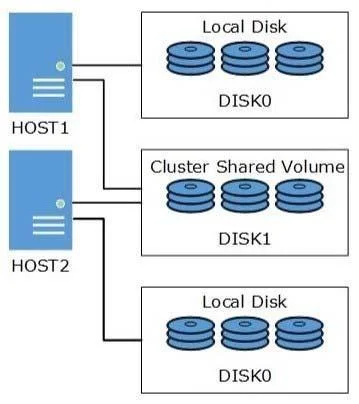
74-409 question #35 exhibit

Options

  • ARun the Windows PowerShell command Set-BCCache 10.
  • BOn each host server, enable write caching for DISK1.
  • CRun the Windows PowerShell command
  • DRun the Windows PowerShell command (Get
  • ERun the Windows PowerShell command Get-ClusterSharedVolume "Disk1" |
  • FOn each host server, disable write caching for DISK0.

How the community answered

(62 responses)
  • A
    2% (1)
  • B
    16% (10)
  • C
    3% (2)
  • D
    71% (44)
  • F
    8% (5)

Explanation

D: Configuring CSV Cache Windows Server 2012 R2 1. Open an elevated Windows PowerShell prompt 2. Define the size of the size of the cache to be reserved (example of setting to 1 GB) (Get-Cluster). BlockCacheSize = 1024 - There are two configuration settings that allow you to control CSV Cache. E: CsvEnableBlockCache - This is a private property of the cluster Physical Disk resource. It allows you to enable CSV Cache on an individual disk. This gives you the flexibility to configure cache for read intensive VMs running on some disks, while allowing you to disable and prevent random I/O on other disks from purging the cache. For example parent VHD's with high reads you would enable caching on Disk1, and high writes for differencing disks the CSV cache could be disabled on Disk2. The default setting is 0 for disabled, setting to a value of 1 enables CSV Block Cache on that Note: In Windows Server 2012 R2 this property has been renamed to EnableBlockCache and is Enabled by default. D: SharedVolumeBlockCacheSizeInMB - This is a cluster common property that allows you to define how much memory (in megabytes) you wish to reserve for the CSV Cache on each node in the cluster. If a value of 512 is defined, then 512 MB of system memory will be reserved on each node in the Failover Cluster. Configuring a value of 0 disables CSV Block Cache. Note: In Windows Server 2012 R2 this property has been renamed to BlockCacheSize. The main new features of the VHDX format are: - Support for virtual hard disk storage capacity of up to 64 TB. - Protection against data corruption during power failures by logging updates to the VHDX metadata structures. - Improved alignment of the virtual hard disk format to work well on large sector disks.

Topics

#CSV#write-back caching#I/O performance#PowerShell

Community Discussion

No community discussion yet for this question.

Full 74-409 Practice