74-325 · Question #50
Which three statements about Office 365 shared mailboxes are true? (Each correct answer presents a complete solution. Choose three.)
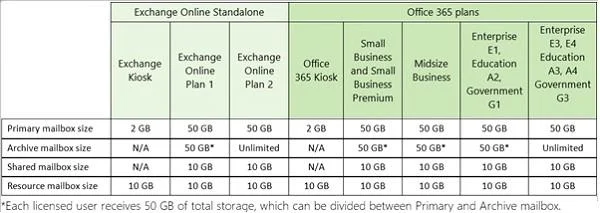
The correct answer is A. Shared mailboxes cannot be placed on litigation hold. B. Shared mailboxes cannot enable an Exchange Online archive mailbox C. The maximum capacity of a shared mailbox is 5 GB. Note: Litigation hold, also known as legal hold, allows organizations to preserve electronically stored information. When a user's mailbox is put on litigation hold, the user can delete items from their mailbox but the items are retained on the servers in the Microsoft Exchange…
Question
Which three statements about Office 365 shared mailboxes are true? (Each correct answer presents a complete solution. Choose three.)
Exhibit
Options
- AShared mailboxes cannot be placed on litigation hold.
- BShared mailboxes cannot enable an Exchange Online archive mailbox
- CThe maximum capacity of a shared mailbox is 5 GB.
- DShared mailboxes require an Exchange Online Plan 1 license.
- EShared mailboxes cannot have email aliases.
How the community answered
(22 responses)- A82% (18)
- D14% (3)
- E5% (1)
Explanation
Note: Litigation hold, also known as legal hold, allows organizations to preserve electronically stored information. When a user's mailbox is put on litigation hold, the user can delete items from their mailbox but the items are retained on the servers in the Microsoft Exchange datacenter. Litigation hold retains e-mail messages, calendar items, tasks, and other mailbox items. Litigation hold also protects the original version of each mailbox item from modification by the user. If a user changes the properties of items in a mailbox on litigation hold, a copy of the item before it was changed is retained. C: Until recently (September 2013), the maximum size limit for Office 365 Shared Mailboxes was 5GB but Microsoft have now increased this limit to 10GB. Not E: After setting up the shared mailbox using Windows PowerShell, you could perform the following steps to set the email alias: 1. Log in Office 365 portal and click Outlook from the top header. 2. At the Outlook Web App page, click Options from the up right corner and click See All Options. 3. Choose Mail > Options: Manage My Organization, at this page, click Users & Groups from the 4. Double click the shared mailbox and click E-Mail Options. 5. Add the other email addresses as email alias for this shared mailbox here.
Topics
Community Discussion
No community discussion yet for this question.
