
Avaya
71301T · Question #3
After running the Install wizard on Avaya Session Border Controller for Enterprise (SBCE), you added a Public Outside IP address to the B1 interface. You try to ping this IP address from a PC in the…
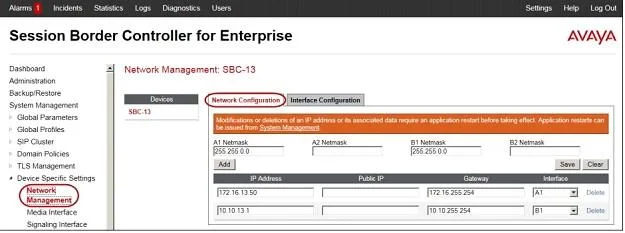
The correct answer is D. Navigate to Device Specific Settings > Network Management > Interfaces and Enable the B1. 1. The interface might need to be enabled. 2. Click on the Interface Configuration tab. 3. Click the Toggle link for both the A1 and the B1 interfaces. The Administrative Status for both A1 and B1 changes to Enabled
Validate the Avaya Aura Communication Applications Implementation
Question
After running the Install wizard on Avaya Session Border Controller for Enterprise (SBCE), you added a Public Outside IP address to the B1 interface. You try to ping this IP address from a PC in the same subnet but it falls. What would you do first to resolve the issue?
Exhibit
Options
- ARestart Applications.
- BSet the Default Gateway router IP address, navigate to the Interfaces and Enable the B1
- CReboot SBCE.
- DNavigate to Device Specific Settings > Network Management > Interfaces and Enable the B1
How the community answered
(37 responses)- A8% (3)
- B3% (1)
- C16% (6)
- D73% (27)
Explanation
- The interface might need to be enabled. 2. Click on the Interface Configuration tab. 3. Click the Toggle link for both the A1 and the B1 interfaces. The Administrative Status for both A1 and B1 changes to Enabled
Topics
#SBCE#B1 interface#network management#troubleshooting
Community Discussion
No community discussion yet for this question.