nerdexam
Microsoft

70-659 · Question #130

Your company's network includes an Active Directory Domain Services (AD DS) domain. You manage Hyper-V servers by using Microsoft System Center Virtual Machine Manager (VMM) 2008 R2. You install…

The correct answer is D. In the VMM Administrator Console, use the Add Hosts Wizard to simultaneously add all 100. Adding Hosts to the VMM Administrator Console When the VMM Administrator Console is run for the first time after installation, it does not, by default, have any hosts assigned to it. In this context, the termhostis used to refer to servers running virtual machines using…

Managing System Center Virtual Machine Manager (SCVMM)

Question

Your company's network includes an Active Directory Domain Services (AD DS) domain. You manage Hyper-V servers by using Microsoft System Center Virtual Machine Manager (VMM) 2008 R2. You install Windows Server 2008 R2 Datacenter (Server Core Installation) on 100 new servers, and you add the servers to the domain. You need to add the Hyper-V role to the 100 new servers. You must accomplish this goal by using the least amount of administrative effort. What should you do?

Exhibit
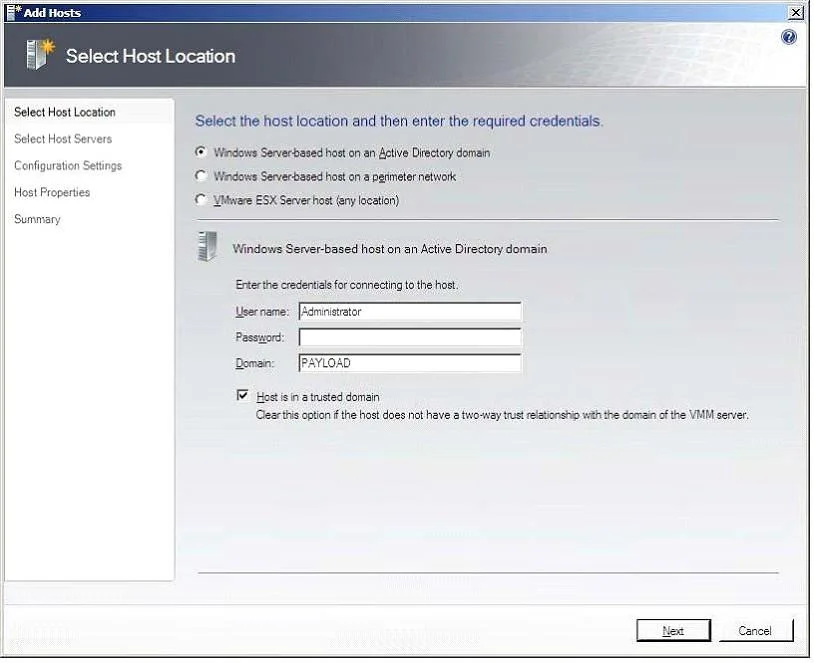
70-659 question #130 exhibit

Options

  • ARun the Add-WindowsFeature RSAT-Hyper-V PowerShell cmdlet.
  • BIn Server Manager, use the Add Roles Wizard to add the Hyper-V role.
  • CIn the VMM Administrator Console, use the Add Hosts Wizard to individually add each new
  • DIn the VMM Administrator Console, use the Add Hosts Wizard to simultaneously add all 100

How the community answered

(31 responses)
  • A
    10% (3)
  • B
    13% (4)
  • C
    3% (1)
  • D
    74% (23)

Explanation

Adding Hosts to the VMM Administrator Console When the VMM Administrator Console is run for the first time after installation, it does not, by default, have any hosts assigned to it. In this context, the termhostis used to refer to servers running virtual machines using Hyper-V, Virtual Server VMware ESX Server virtualization technology. Since very little can be achieved using the console until some hosts are added, this is one of the first tasks to be performed. Hosts are added to the console using theHostsview, which is selected by clicking on theHostsoption in the list of views located in the pane in the bottom left hand corner of the console window. Once the Hosts view is displayed, hosts may be added by clicking on theAdd Hostlink in theActionspane, or selecting theActions->Virtual Machine Manager- >Add Hostmenu option. Once selected, theAdd Hostswizard will appear displaying the Select Host Locationscreen as illustrated in the following figure: The purpose of this screen is to specify where the host is located in terms of the logical network infrastructure. A variety of different host types may be added to the console, these being a Windows Server host running Hyper-V which is a member of an Active Directorydomain, a Windows Server host running Hyper-V which is not a member of an Active Directory domain (also referred to as aperimeter network host), or a host running VMware ESX Server (regardless of whether or not it is an Active Directory domain member). If a host on a perimeter network is specified, the host must have had theVMM Agentcomponent installed on it before it can be added to the VMM Server. This installation process also involves the creation of an encryption key which will also need to be provided during the host addition process. For details on installing the VMM Agent on a perimeter host refer to the chapter entitledInstalling VMM 2008 Components. After selecting the host location and type, enter the user name and password credentials of an account on the host which may be used to gain access and clickNextto proceed to theSelect HostServersscreen. Having defined the location of the hosts to be added, the purpose of theSelect Host Serversscreen is to allow selection of the specific hosts to be added to the VMM Server. To add hosts, enter the name of Active Directory domain of which the host is a member followed by the computer name. If in doubt as to the name of the computer to be added, theSearchbutton may be used to search the specified domain for systems running either Virtual Server or Hyper-V technology. Once a list of servers has been generated, one or more hosts may be selected and added to the console. Alternatively, if you know the name of the host to be added, simply enter the name and click the Add button: Once the required hosts have been added, click on theNextbutton to proceed to theConfiguration Settingsscreen. This screen is used to define which group of hosts the machine is to be assigned to. By default, only theAll Hostsgroup is pre-configured within the VMM Administrator Console. In addition, if the host is currently managed by a different VMM Server than the one to which the VMM Administrator Console is currently connected, select the option toReassociate host with this Virtual Machine Manager Serverto associate the host with the currently connected VMM Server. ClickingNextdisplays theHost Settingsscreen where a number of paths suitable for storing virtual machine files on the host may be defined. If no paths are specified, the default location will be used for all virtual machines created on the host using the console. Note that the console will not create any paths if they do not already exist on the host. These paths must be manually created before they can be used to store virtual machines. In addition, a remote connection port may be specified to allow remote connections to the host using the Virtual Machine Connection tool. Once the host settings are defined, clickNextand review the information on theSummaryscreen. In previous chapters we have mentioned that VMM 2008 sits on top of Windows PowerShell and that any operations performed are converted into a Windows PowerShell script and executed. To prove this, click on the View scriptbutton to display the PowerShell script which will be executed to add the host to the VMM Server. Assuming all is correct in the summary, click onAdd hoststo add the hosts to the VMM Server. Once the addition is complete, the new host will appear in the list of hosts in the main console Configuring Host Groups In the previous section a host was added to theAll Hostsgroup of the VMM Server. In addition to the All Hostsgroup, other groups may be created and existing groups removed to aid in the administration of large and complex virtualization deployments. Host groups are configured hierarchically, with theAll Hostsgroup at the top of the tree and other sub-groups nested beneath it. Each sub-group may, in turn, have its own sub-groups allowing multiple layers of group nesting. For example,All Hostsmay have a sub-group for all hosts located in California. The California subgroup may then be configured to have sub-groups of its own for each city in which hosts are located (San Jose, Palo Alto, San Francisco etc). To add a new host group, ensure that the VMM Administrator Console is displaying the Hostsview, right click on theAll Hostsitem in theHostspane in the top left hand corner of the window and selectNew host groupfrom the menu. A new host group entry will appear with the default nameNew host grouphighlighted. Enter a new name and press enter to complete the creation process. To remove an existing group, right click on the group name in the Hosts pane and selectRemovefrom the popup menu. To move a host from one group to another, select the host from the list of hosts and click on theMove to host grouplink in theActionspane. Navigate through the tree of host groups to find the target group and clickOKto initiate the move. Similarly, to add an existing host to a group, select the host group from the list, click onAdd hostfrom the Actions pane and use the wizard as described above to complete the process. Setting Host Reserves Host Reservesdefine how much of a host's resources are to be reserved for the host operating system. Once these reserves are configured, a virtual machine cannot be deployed on that host if doing so would require the use of those reserved resources. The host resources that may be reserved are as follows: Maximum Disk I/O Per Second (IOPS) NetworkCapacityPercentage Host reserves are specified on a host group basis. In addition, the group reserve settings may also be overridden on a per host basis. To specify the host group reserve settings, right click on the host group name in the Hosts pane, selectPropertiesfrom the menu and click theHost Reserve Tabsin theHost Group Propertiesdialog as illustrated in the following figure: In order to override the group host reserve settings, right click on the host in the list, selectPropertiesand click onReservesin the resulting dialog.

Topics

#VMM Add Hosts Wizard#bulk Hyper-V deployment#Server Core#least administrative effort

Community Discussion

No community discussion yet for this question.

Full 70-659 Practice