
70-466 · Question #102
You need to meet the browsing requirements for the Products hierarchy. Which property should you modify?
The correct answer is C. HideMemberIf. The HideMemberIf property in SSAS controls whether hierarchy members are hidden during browsing based on defined conditions, enabling cleaner hierarchy navigation.
Question
Exhibit
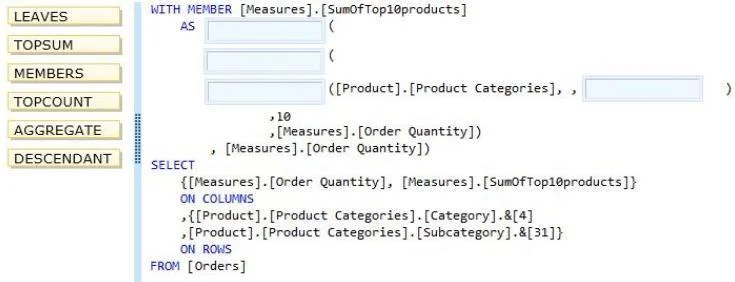
Options
- ADefaultMember
- BAttributeHierarchyDisplayFolder
- CHideMemberIf
- DRootMemberIf
How the community answered
(25 responses)- B4% (1)
- C92% (23)
- D4% (1)
Why each option
The HideMemberIf property in SSAS controls whether hierarchy members are hidden during browsing based on defined conditions, enabling cleaner hierarchy navigation.
DefaultMember specifies which member is pre-selected when a dimension is used in a query, not which members are visible or hidden during hierarchy browsing.
AttributeHierarchyDisplayFolder organizes attributes into folders within the dimension's attribute list in client tools, but does not control member visibility within a hierarchy.
HideMemberIf is an SSAS attribute property that specifies the conditions under which a member is hidden when users browse a hierarchy - for example, hiding a member if its name equals the parent name or if it has no data. This directly addresses hierarchy browsing requirements by suppressing redundant or irrelevant members from the user's view. The property accepts values such as Never, OnlyChildWithParentName, NoName, and ParentName to fine-tune visibility.
RootMemberIf determines which members act as root nodes in a parent-child hierarchy, affecting structure definition rather than controlling whether members are shown or hidden during browsing.
Concept tested: SSAS HideMemberIf property for hierarchy member visibility
Source: https://learn.microsoft.com/en-us/analysis-services/multidimensional-models/attribute-properties-hide-an-attribute-member
Topics
Community Discussion
No community discussion yet for this question.