
156-215.80 · Question #103
Jack works for a managed service provider and he has been tasked to create 17 new policies for several new customers. He does not have much time. What is the BEST way to do this with R80 security…
The correct answer is A. Create a text-file with mgmt_cli script that creates all objects and policies. Open the file in. Did you know: mgmt_cli can accept csv files as inputs using the --batch option. The first row should contain the argument names and the rows below it should hold the values for these parameters. So an equivalent solution to the powershell script could look like this: mgmt_cli…
Question
Jack works for a managed service provider and he has been tasked to create 17 new policies for several new customers. He does not have much time. What is the BEST way to do this with R80 security management?
Exhibit
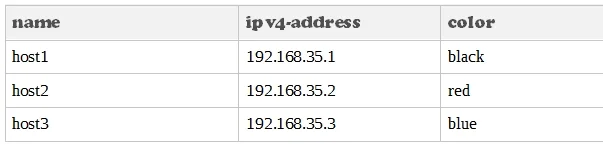
Options
- ACreate a text-file with mgmt_cli script that creates all objects and policies. Open the file in
- BCreate a text-file with Gaia CLI -commands in order to create all objects and policies. Run the file
- CCreate a text-file with DBEDIT script that creates all objects and policies. Run the file in the
- DUse Object Explorer in SmartConsole to create the objects and Manage Policies from the menu to
How the community answered
(47 responses)- A79% (37)
- B4% (2)
- C13% (6)
- D4% (2)
Explanation
Did you know: mgmt_cli can accept csv files as inputs using the --batch option. The first row should contain the argument names and the rows below it should hold the values for these parameters. So an equivalent solution to the powershell script could look like this: mgmt_cli add host --batch data.csv -u <username> -p <password> -m <management server> This can work with any type of command not just "add host" : simply replace the column names with the ones relevant to the command you need. https://sc1.checkpoint.com/documents/R80/APIs/#gui-cli/add-access-rule
Topics
Community Discussion
No community discussion yet for this question.